
Μια στιγμή που φτάνουν όλοι οι αρχάριοι
Στο Μέρος 1 ανοίξαμε ένα recommendation του Microsoft Secure Score και είδαμε κάθε πεδίο του. Πλέον μπορείς να κοιτάξεις ένα recommendation και να καταλάβεις τι βλέπεις.
Αν όμως έχεις κάνει μερικές μέρες κλικ εδώ κι εκεί, μάλλον έφτασες σε αυτή τη στιγμή: κοιτάς τη συνολική βαθμολογία και αναρωτιέσαι από πού βγαίνει αυτός ο αριθμός; Ποιος μετράει τι; Κάνει η Microsoft κάποιο scan στο tenant μου; Και γιατί υπάρχουν recommendations για προϊόντα που δεν ήξερα καν ότι έχω;
Είναι καλές ερωτήσεις. Οι απαντήσεις είναι χρήσιμες, και μόλις τις καταλάβεις, το Microsoft Defender portal σταματά να μοιάζει με τυχαία συλλογή από λειτουργίες και αρχίζει να μοιάζει με σύστημα.
Αυτές τις απαντήσεις δίνει αυτό το άρθρο.
Η σύντομη εκδοχή
Το Microsoft Secure Score δεν είναι ξεχωριστό προϊόν ασφάλειας. Είναι ένας πίνακας αποτελεσμάτων που διαβάζει δεδομένα από άλλα προϊόντα της Microsoft και σου δίνει έναν αριθμό.
Κάθε ένα από αυτά τα προϊόντα ξέρει πώς πρέπει να είναι ρυθμισμένο. Το Microsoft Secure Score ελέγχει, για κάθε recommendation, αν η ρύθμιση υπάρχει στο tenant σου. Τα περισσότερα recommendations μετρούν «όλα ή τίποτα». Κάποια δίνουν μέρος των πόντων, ανάλογα με το πόσοι χρήστες ή πόσες συσκευές καλύπτονται. Στο τέλος αθροίζει τους πόντους και σου δείχνει το σύνολο.
Αυτό είναι όλο. Το υπόλοιπο άρθρο ξεδιπλώνει ποιο προϊόν δίνει τι, και πώς βρίσκεις από πού προέρχεται ένας πόντος.
Η οικογένεια Microsoft Defender σε μία παράγραφο
Η Microsoft ομαδοποιεί τα προϊόντα ασφάλειάς της σε μια οικογένεια με το όνομα Microsoft Defender, με ομπρέλα το Microsoft Defender XDR. Κάτω από την ομπρέλα υπάρχουν αρκετά workloads: το Microsoft Defender for Endpoint (συσκευές), το Microsoft Defender for Office 365 (email και Teams), το Microsoft Defender for Identity (Active Directory) και το Microsoft Defender for Cloud Apps (εφαρμογές SaaS). Δίπλα τους υπάρχει και το Microsoft Defender for Cloud, για τα workloads του Azure και άλλων clouds. Για μια πλήρη περιήγηση, δες τη σειρά Microsoft Defender Demystified, ή τον πιο σύντομο πρακτικό οδηγό για την οικογένεια Microsoft Defender.
Το Microsoft Secure Score διαβάζει από τα περισσότερα από αυτά.
Πού βρίσκεται το Microsoft Secure Score
Θυμήσου από το Μέρος 1 τη διαδρομή:
security.microsoft.com → Exposure management → Secure score
Η σημαντική λέξη είναι το Exposure management. Εκεί βρίσκεται το Microsoft Secure Score, μαζί με άλλες λειτουργίες που αφορούν τη στάση ασφάλειας (security posture) του οργανισμού.
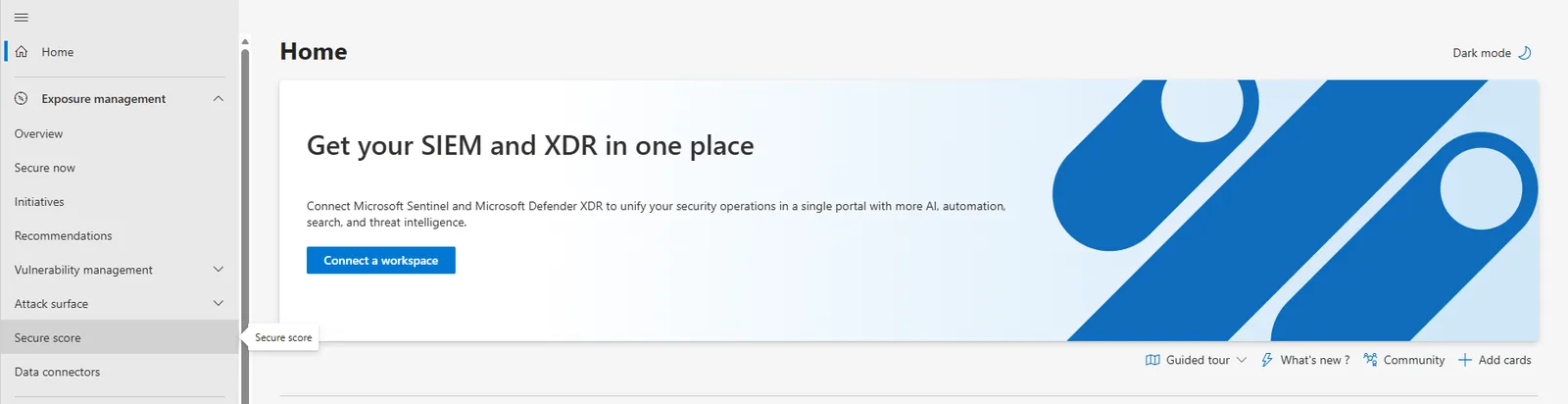
📷 Εικόνα 1: Η ενότητα Exposure management στο αριστερό μενού.
Το Microsoft Security Exposure Management προσπαθεί να απαντήσει στο «πόσο εκτεθειμένοι είμαστε;». Στο μενού του, όπως φαίνεται στην Εικόνα 1, θα βρεις:
- Overview, Secure now, Initiatives και Recommendations: η συνολική εικόνα και οι προτεραιότητες
- Vulnerability management: οι ευπάθειες των συσκευών
- Attack surface: η επιφάνεια επίθεσης του οργανισμού
- Secure score: το Microsoft Secure Score
- Data connectors: οι συνδέσεις με πηγές δεδομένων
Το Microsoft Secure Score είναι ένα από τα εργαλεία της ενότητας. Προς το παρόν δεν χρειάζεται να χρησιμοποιήσεις τα υπόλοιπα. Απλώς πρόσεξε ότι υπάρχουν και ότι συνδέονται.
Τα προϊόντα που τροφοδοτούν το Microsoft Secure Score
Αυτό είναι το κομμάτι που συνήθως εκπλήσσει τους νέους συναδέλφους. Το Microsoft Secure Score υπολογίζεται από δεδομένα πολλών διαφορετικών προϊόντων. Η στήλη Product της λίστας Recommended actions σου δείχνει από ποιο προϊόν έρχεται κάθε recommendation, και η στήλη Category σε ποια από τις τέσσερις ομάδες (Identity, Data, Device, Apps) ανήκει.
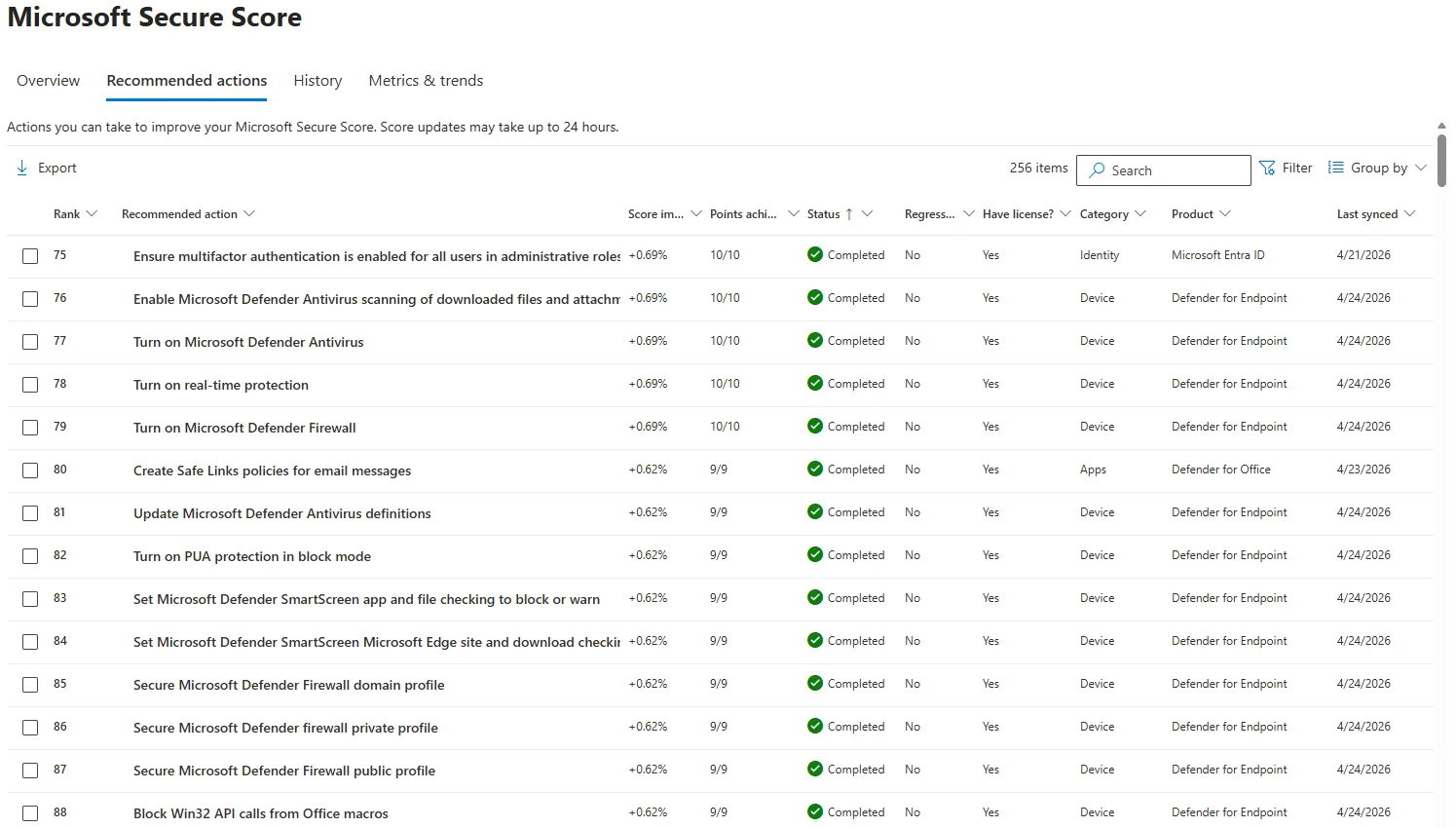
📷 Εικόνα 2: Η λίστα Recommended actions με τις στήλες Category και Product.
Η Microsoft έχει σήμερα recommendations για Microsoft Entra ID, Microsoft Defender for Endpoint, Microsoft Defender for Identity, Microsoft Defender for Office, Exchange Online, SharePoint Online, Microsoft Teams, Microsoft Defender for Cloud Apps, app governance και Microsoft Purview Information Protection. Έχει επίσης για εφαρμογές τρίτων, όπως Salesforce, ServiceNow, Zoom, GitHub, Okta και Docusign. Ας δούμε τα κυριότερα.
Microsoft Entra ID (ταυτότητες)
Το Microsoft Entra ID είναι η υπηρεσία της Microsoft για ταυτότητες και πρόσβαση στο cloud. Δίνει μεγάλο μέρος των recommendations, όπως:
- Πολυπαραγοντική αυθεντικοποίηση (MFA), ειδικά για τους διαχειριστές
- Πολιτικές Conditional Access, π.χ. αποκλεισμός του legacy authentication
- Πολιτικές κινδύνου σύνδεσης του Microsoft Entra ID Protection
- Self-service password reset
- Έλεγχοι στους προνομιούχους λογαριασμούς
Τα recommendations με Product Microsoft Entra ID ανήκουν σχεδόν πάντα στην κατηγορία Identity.
Microsoft Defender for Identity (Active Directory)
Το Microsoft Defender for Identity φέρνει στο Secure Score ευρήματα από το on-premises Active Directory: λογαριασμούς υπηρεσιών σε προνομιούχες ομάδες, ανασφαλείς ρυθμίσεις του domain, κωδικούς που φαίνονται σε attributes ή σε GPOs. Ανήκουν κι αυτά στην κατηγορία Identity. Αν δεν έχεις εγκαταστήσει ακόμα sensors στους domain controllers, θα δεις recommendation που σου ζητά να ξεκινήσεις την ανάπτυξη.
Microsoft Defender for Endpoint (συσκευές)
Το Microsoft Defender for Endpoint προστατεύει τις συσκευές του οργανισμού. Τα recommendations του αφορούν:
- Αν το antivirus είναι ενεργό και ενημερωμένο
- Αν είναι ρυθμισμένοι οι κανόνες attack surface reduction
- Αν είναι ενεργά το firewall και το network protection
- Ρυθμίσεις ασφάλειας του λειτουργικού, όπως το Credential Guard και το UAC
Είναι η κατηγορία Device. Αν τα recommendations του Device είναι λίγα, συνήθως σημαίνει ότι το Microsoft Defender for Endpoint δεν έχει αναπτυχθεί ακόμα σε όλες τις συσκευές.
Microsoft Defender for Office 365 και Exchange Online (email)
Το Microsoft Defender for Office 365 προστατεύει το email και το Microsoft Teams. Τα recommendations του αφορούν πολιτικές όπως Safe Links, Safe Attachments, anti-phishing και zero-hour auto purge. Το Exchange Online δίνει recommendations για βασικές ρυθμίσεις του email, όπως το mailbox auditing και την αυτόματη προώθηση προς εξωτερικούς παραλήπτες.
Στο δικό μου tenant, αυτά τα recommendations εμφανίζονται κυρίως στην κατηγορία Apps (δες το «Create Safe Links policies for email messages» στην Εικόνα 2).
Microsoft Defender for Cloud Apps (εφαρμογές SaaS)
Το Microsoft Defender for Cloud Apps παρακολουθεί τη χρήση εφαρμογών SaaS. Μέσω αυτού έρχονται στο Secure Score τα recommendations για εφαρμογές τρίτων που έχεις συνδέσει (π.χ. Salesforce ή ServiceNow), τα recommendations του app governance για τις OAuth εφαρμογές, και κάποια recommendations για υπηρεσίες του Microsoft 365, όπως το Microsoft Forms που θα δούμε παρακάτω.
Microsoft Purview (προστασία δεδομένων)
Το Microsoft Purview καλύπτει την προστασία δεδομένων και τη συμμόρφωση. Στο Secure Score φέρνει recommendations του Microsoft Purview Information Protection, π.χ. για sensitivity labels. Εμφανίζονται στην κατηγορία Data.
Πώς βρίσκεις από πού προέρχεται ένας πόντος
Μια πρακτική άσκηση που τα κάνει όλα να «κουμπώσουν». Άνοιξε το Microsoft Secure Score, διάλεξε ένα recommendation και ας βρούμε μαζί από πού έρχεται.
Παράδειγμα: το recommendation «Ensure internal phishing protection for Forms is enabled».
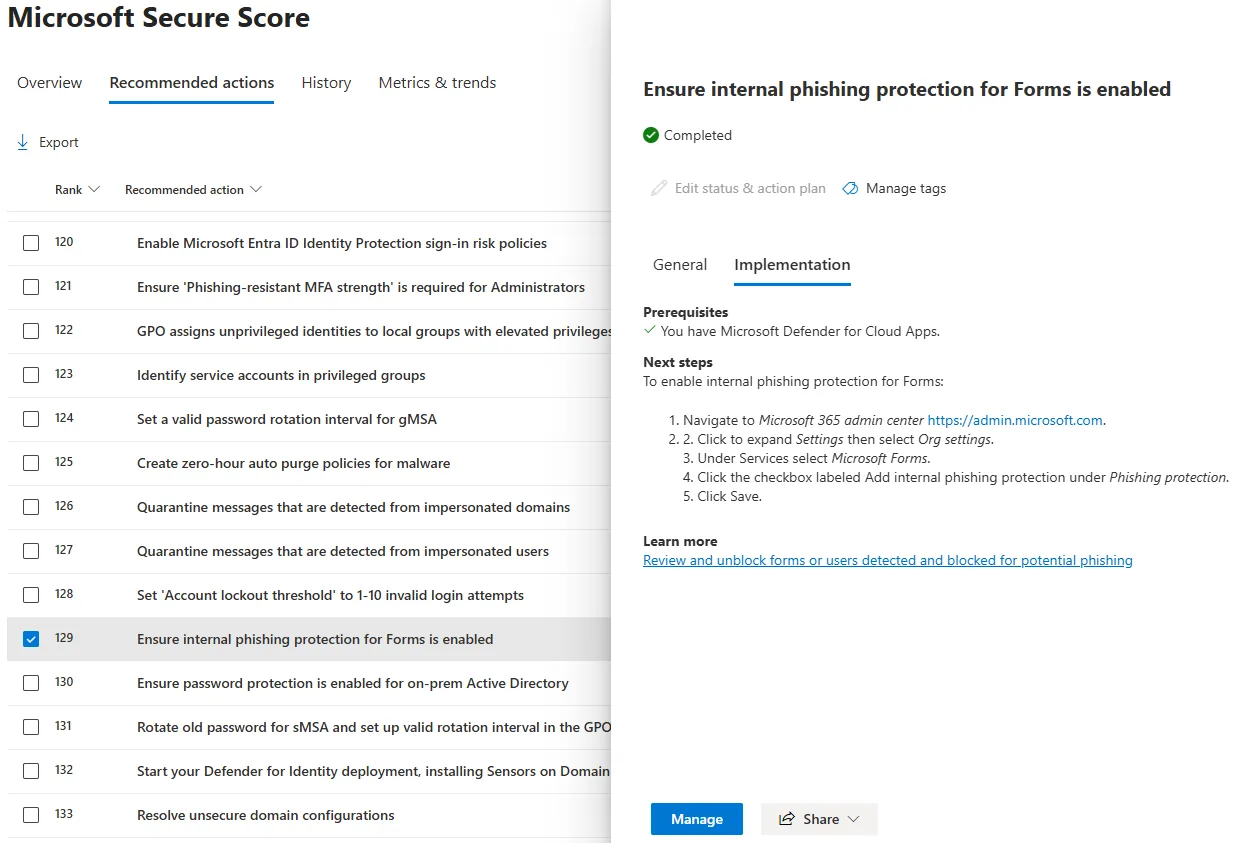
📷 Εικόνα 3: Η καρτέλα Implementation ενός recommendation, με την προϋπόθεση και την οθόνη όπου γίνεται η ρύθμιση.
Η καρτέλα Implementation γράφει στα Prerequisites ότι χρειάζεται το Microsoft Defender for Cloud Apps, και στα Next steps σε στέλνει στο Microsoft 365 admin center → Settings → Org settings → Microsoft Forms, για να ενεργοποιήσεις το internal phishing protection. Πρόσεξε τι μόλις έγινε:
- Πίνακας αποτελεσμάτων: το Microsoft Secure Score, στο Defender portal
- Πού γίνεται η ρύθμιση: στο Microsoft Forms, από το Microsoft 365 admin center
- Ποιο προϊόν φέρνει το recommendation: το Microsoft Defender for Cloud Apps
- Η ερώτηση που απαντά ο πόντος: Είναι ενεργό το internal phishing protection στο Forms;
Όταν κάνεις τη ρύθμιση στο Microsoft 365 admin center, η αλλαγή φτάνει στο Microsoft Secure Score στον επόμενο συγχρονισμό. Η κατάσταση γίνεται Completed και η βαθμολογία ανεβαίνει όσο αξίζει το recommendation.
Το συμπέρασμα: το Microsoft Secure Score δεν έκανε ποτέ τίποτα στο tenant σου. Απλώς ρωτά τα άλλα προϊόντα και διαβάζει την απάντηση. Το ίδιο μοτίβο ισχύει για όλα τα recommendations. Γι’ αυτό το κουμπί Manage στο κάτω μέρος του panel σε πηγαίνει στην οθόνη του προϊόντος όπου γίνεται η ρύθμιση, όχι σε κάποια ρύθμιση του ίδιου του Secure Score.
Γιατί δεν βλέπω όλα τα recommendations;
Συχνή απορία. Διάβασες ένα άρθρο ή είδες ένα webinar για ένα συγκεκριμένο recommendation, και στο δικό σου tenant δεν υπάρχει.
Ο λόγος είναι σχεδόν πάντα οι άδειες χρήσης. Αν έχεις άδεια για ένα προϊόν, βλέπεις όλα τα recommendations του, ανεξάρτητα από το πακέτο ή το plan. Αν δεν έχεις καθόλου άδεια για ένα προϊόν, τα recommendations του μπορεί να μην εμφανίζονται, ή να εμφανίζονται με «No» στη στήλη Have license?. Αν, για παράδειγμα, δεν έχεις αναπτύξει το Microsoft Defender for Identity, δεν θα δεις τα ευρήματα του Active Directory.
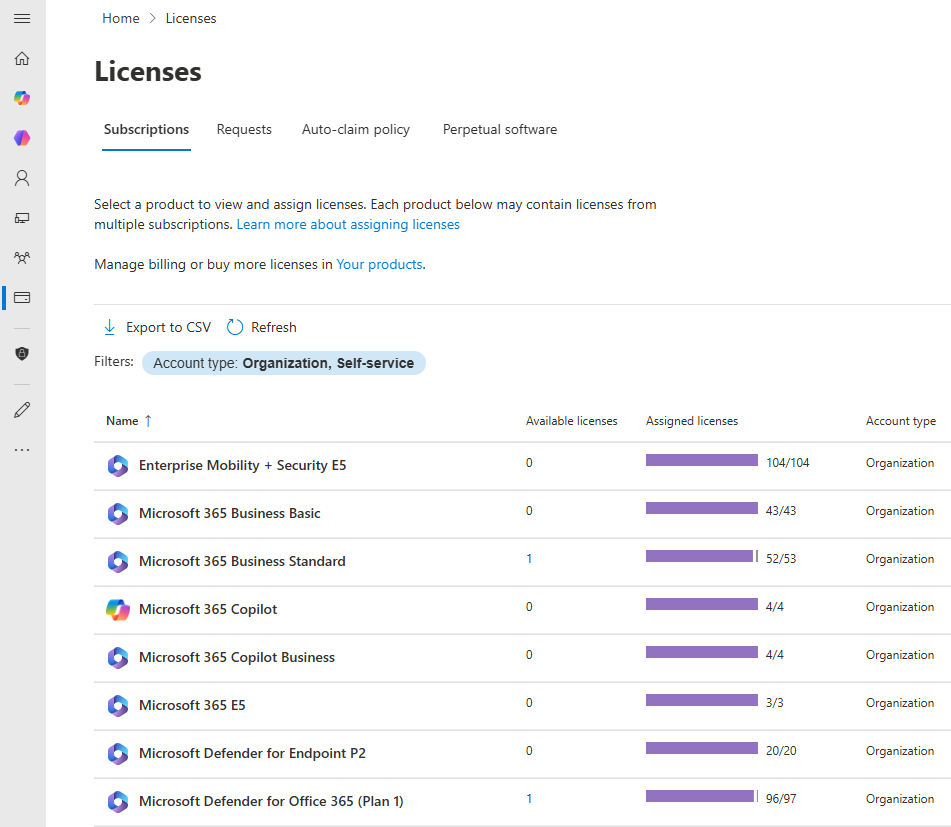
📷 Εικόνα 4: Η σελίδα Licenses του Microsoft 365 admin center.
Για να δεις ποια προϊόντα έχεις, άνοιξε το Microsoft 365 admin center → Billing → Licenses.
Γι’ αυτό δύο οργανισμοί που συγκρίνουν βαθμολογίες μπορεί να μπερδευτούν. Δεν βαθμολογούνται πάνω στο ίδιο σύνολο ερωτήσεων: ο καθένας βλέπει τα recommendations των προϊόντων που έχει. Η Microsoft γράφει πάντως ότι η απόλυτη στάση ασφάλειας που μετρά το Secure Score δεν αλλάζει με τις άδειες που έχεις για ένα προϊόν.
Για το τι περιλαμβάνει κάθε άδεια, δες το Microsoft Defender Μέρος 4: Οδηγός αδειοδότησης.
Πόσο συχνά ενημερώνεται το Microsoft Secure Score;
Όχι αμέσως. Όταν αλλάζεις μια ρύθμιση στο Microsoft Entra ID, στο Microsoft Defender for Endpoint ή σε άλλο προϊόν, χρειάζεται χρόνος μέχρι να τη δει το Microsoft Secure Score.
Τι λέει η Microsoft:
- Γενικά: οι πόντοι συγχρονίζονται μία φορά την ημέρα, και η λίστα Recommended actions γράφει ότι η ενημέρωση μπορεί να πάρει έως 24 ώρες. Στην Εικόνα 5 θα δεις ότι οι αλλαγές στο History καταγράφονται όλες στις 3:00 τα ξημερώματα.
- Recommendations του Microsoft Entra ID: η κατάστασή τους ανανεώνεται μία φορά την εβδομάδα.
- Recommendations του Microsoft Teams: μία φορά τον μήνα.
Από την εμπειρία μου, τα recommendations του Microsoft Defender for Endpoint εξαρτώνται και από το πότε επικοινωνούν οι συσκευές με την υπηρεσία, οπότε μπορεί να αργήσουν περισσότερο.
Αν κάνεις μια αλλαγή και η βαθμολογία δεν κουνηθεί την επόμενη μέρα, μην πανικοβληθείς. Ξαναδές τη μεθεπόμενη. Για τα recommendations του Entra ID, περίμενε μία εβδομάδα. Αν περάσει αυτός ο χρόνος και δεν έχει αλλάξει τίποτα, τότε ψάξε: συνήθως η ρύθμισή σου δεν είναι ακριβώς αυτό που ελέγχει το Microsoft Secure Score, π.χ. μια πολιτική που δεν καλύπτει όλους τους χρήστες.
Η καρτέλα History λέει μια ιστορία
Ένα τελευταίο κομμάτι της σελίδας που αξίζει να ξέρεις: η καρτέλα History.
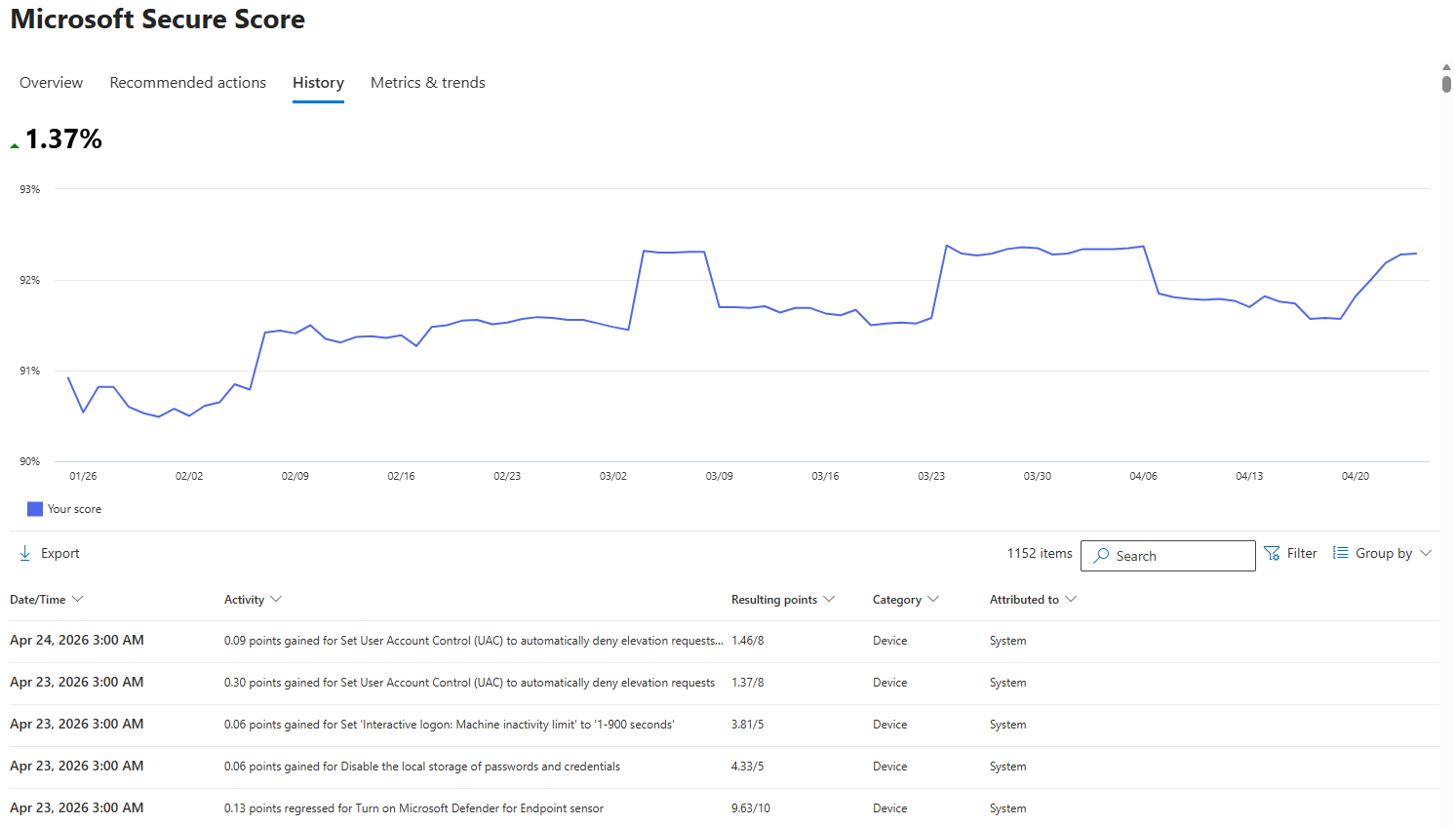
📷 Εικόνα 5: Η καρτέλα History του Microsoft Secure Score.
Η καρτέλα History δείχνει την πορεία της βαθμολογίας και κάθε αλλαγή πόντων: πότε ένα recommendation κέρδισε πόντους (points gained), πότε έχασε (points regressed), πόσους πόντους έχει πλέον (Resulting points), σε ποια κατηγορία ανήκει, και ποιος ή τι προκάλεσε την αλλαγή (Attributed to, π.χ. System).
Είναι χρήσιμη όταν:
- Η βαθμολογία έπεσε απροσδόκητα και θέλεις να βρεις γιατί
- Θέλεις να δείξεις πρόοδο σε μια περίοδο αναφοράς («ανεβήκαμε 1.37% το τρίμηνο»)
- Θέλεις να δεις ποιες αλλαγές ρυθμίσεων κίνησαν πραγματικά τον αριθμό
Όσο εξοικειώνεσαι με το Microsoft Secure Score, η καρτέλα History γίνεται η πηγή σου για συζητήσεις του τύπου «ναι, αυτή τη δουλειά την κάναμε» και «εδώ έγινε η πτώση». Είναι και τεκμήριο που μπορείς να δείξεις σε έναν έλεγχο. Η ΚΥΑ 1689/2025 ζητά περιοδική αξιολόγηση της παραμετροποίησης (απαίτηση 14.δ) και επικαιροποίηση του πλάνου αντιμετώπισης κινδύνων (απαίτηση 5.1.δ), και το History με το Export δίνει την ιστορία των αλλαγών με ημερομηνίες.
Συνοψίζοντας
Όλα όσα είπαμε σε μία παράγραφο: το Microsoft Secure Score είναι ένας πίνακας αποτελεσμάτων μέσα στην ενότητα Exposure management του Microsoft Defender portal. Διαβάζει δεδομένα από πολλά προϊόντα της Microsoft, όπως το Microsoft Entra ID, τα Microsoft Defender for Endpoint, Identity, Office 365 και Cloud Apps, το Exchange Online και το Microsoft Purview, και σου δίνει έναν αριθμό. Όταν εφαρμόζεις ένα recommendation, δεν αλλάζεις τίποτα στο ίδιο το Secure Score. Αλλάζεις μια ρύθμιση σε κάποιο από αυτά τα προϊόντα, και η αλλαγή φτάνει στη βαθμολογία στον επόμενο συγχρονισμό. Οι άδειες καθορίζουν ποια recommendations βλέπεις. Η καρτέλα History σου λέει τι έγινε και πότε.
Αυτό είναι όλο το νοητικό μοντέλο. Μόλις το αποκτήσεις, το Microsoft Secure Score, και ένα εκπληκτικά μεγάλο μέρος του Microsoft Defender portal, βγάζουν νόημα.
Πού να συνεχίσεις από εδώ
Στο Μέρος 3 περνάμε στην καθημερινή διαχείριση του Microsoft Secure Score ως μέρος ενός προγράμματος συμμόρφωσης: πώς ιεραρχείς όταν έχεις πάνω από 250 recommendations, πώς τεκμηριώνεις τις αποφάσεις κινδύνου για τους ελεγκτές, και πώς βλέπεις τη βαθμολογία ως τεκμήριο και όχι ως στόχο.
🔗 Θέλεις το Secure Score από την οπτική της συμμόρφωσης; Ο Πρακτικός Οδηγός για τον ΥΑΣΠΕ δείχνει πώς ιεραρχείς τα recommendations για τον ν. 5160/2024. Δες και πώς αντιστοιχίζεται το Microsoft Secure Score στις απαιτήσεις του οδηγού της ΚΥΑ 1689/2025 και στα controls του ISO/IEC 27001.
Ακολούθησέ με στο LinkedIn για ειδοποιήσεις νέων άρθρων.
Πηγές και επαλήθευση
Επιπλέον πηγές: