
Πριν ξεκινήσουμε: τι είναι το Microsoft Secure Score, σε μία παράγραφο
Το Microsoft Secure Score είναι ένα εργαλείο μέτρησης μέσα στο Microsoft Defender portal. Αξιολογεί την ασφάλεια του οργανισμού σου σε ταυτότητες, συσκευές, εφαρμογές και δεδομένα. Σου δίνει μια συνολική βαθμολογία και μια λίστα με recommendations για να τη βελτιώσεις, ταξινομημένη κατά προτεραιότητα.
Αν μόλις ξεκίνησες ως Microsoft 365 Junior Administrator, Tier 1 SOC Analyst ή Cloud Security Engineer, κάποιος μάλλον σου έχει ήδη πει «ρίξε μια ματιά στο Secure Score». Ίσως ο προϊστάμενός σου. Ίσως ένας ελεγκτής. Ίσως ένας συνάδελφος που θέλει «απλώς τον αριθμό για την τριμηνιαία αναφορά».
Και μάλλον άνοιξες το Microsoft Defender portal, βρήκες τη σελίδα του Microsoft Secure Score, είδες κάρτες, λίστες και αριθμούς, και σκέφτηκες: εντάξει, αλλά τι ακριβώς βλέπω, και πώς δουλεύει αυτό το πράγμα;
Δεν είσαι ο μόνος. Ήμουν κι εγώ στην ίδια θέση, και δεν ήταν εύκολο. Από την εμπειρία μου, κανείς δεν καταλαβαίνει το Microsoft Secure Score με την πρώτη ματιά. Είναι από τις οθόνες της Microsoft που γίνονται απλές μόλις μάθεις τι σημαίνει κάθε κομμάτι, αλλά την πρώτη φορά μπερδεύουν. Αυτό το άρθρο είναι ο οδηγός που θα ήθελα να μου είχε δώσει κάποιος την πρώτη μου μέρα.
Θα ανοίξουμε μαζί ένα συγκεκριμένο recommendation και θα δούμε κάθε πεδίο της οθόνης. Στο τέλος θα ξέρεις τι βλέπεις και τι αξίζει την προσοχή σου. Χωρίς θεωρία και χωρίς GRC ακόμα, μόνο η οθόνη που έχεις μπροστά σου.
📌 Αυτό είναι το Μέρος 1 μιας σειράς που χτίζει κάτι μεγαλύτερο: ένα πρόγραμμα συμμόρφωσης με μηχανή το Microsoft Secure Score. Αν σε ενδιαφέρει η συνολική εικόνα, θα τη βρεις στην εισαγωγή της σειράς. Δεν χρειάζεται όμως να τη διαβάσεις πρώτα. Ξεκίνα από εδώ.
Πώς φτάνεις στο Microsoft Secure Score σε 30 δευτερόλεπτα
- Άνοιξε το
https://security.microsoft.com(το Microsoft Defender portal) - Στο αριστερό μενού, άνοιξε το Exposure management
- Πάτα Secure score
Μπορείς να πας και απευθείας στο https://security.microsoft.com/securescore.
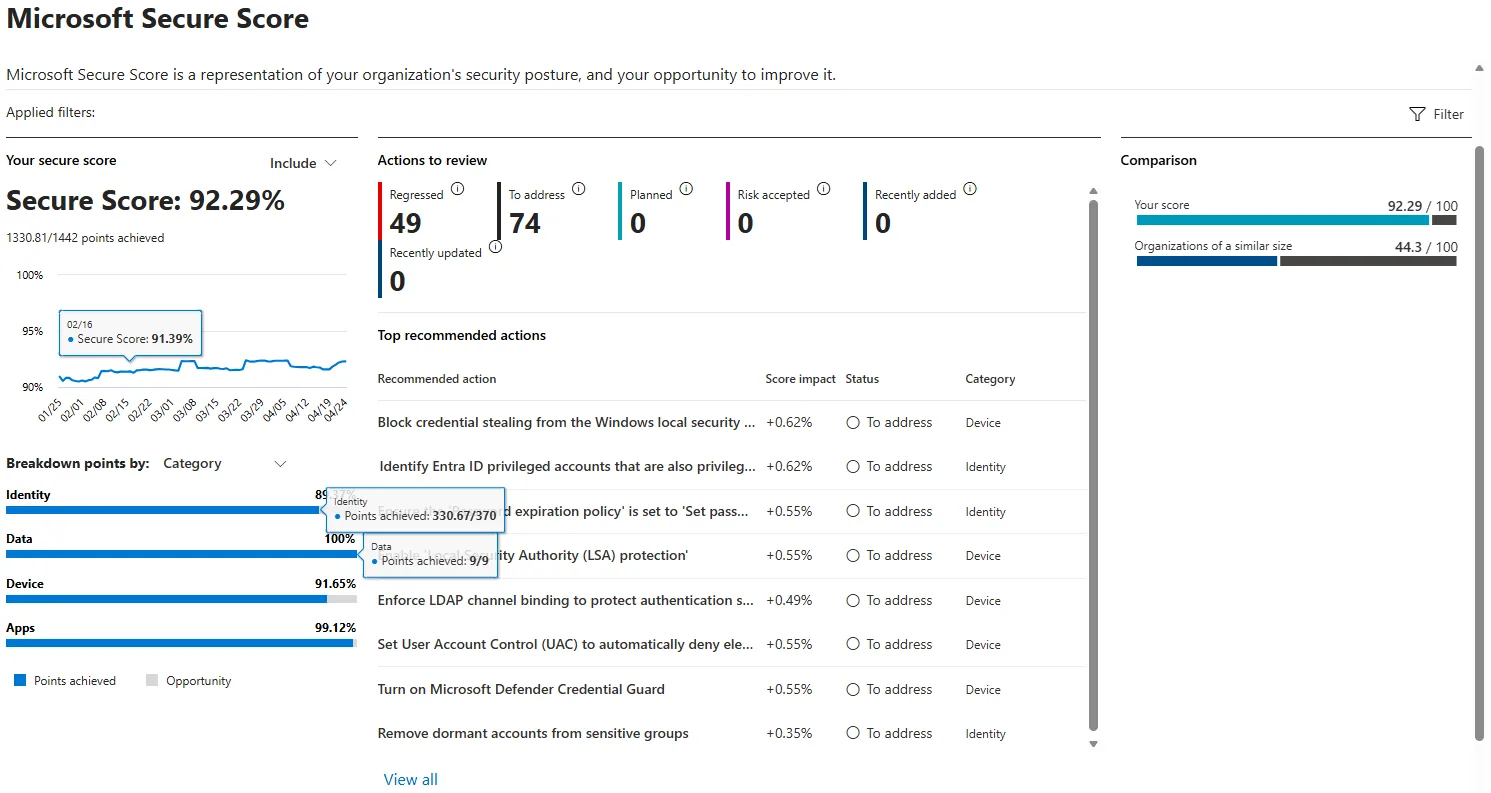
📷 Εικόνα 1: Η σελίδα Overview του Microsoft Secure Score.
Στη σελίδα Overview θα δεις, από αριστερά προς τα δεξιά:
- Your secure score: η βαθμολογία σου ως ποσοστό, οι πόντοι που έχεις πετύχει από το σύνολο (π.χ. 1330.81/1442) και ένα γράφημα με την πορεία της στον χρόνο. Από κάτω, το Breakdown points by: Category χωρίζει τους πόντους σε Identity, Data, Device και Apps.
- Actions to review: πόσα recommendations είναι σε κάθε κατάσταση (Regressed, To address, Planned, Risk accepted, Recently added, Recently updated), και από κάτω τα Top recommended actions, αυτά που η Microsoft θεωρεί ότι ανεβάζουν περισσότερο τη βαθμολογία.
- Comparison: πώς συγκρίνεται η βαθμολογία σου με οργανισμούς παρόμοιου μεγέθους.
Μην ασχοληθείς ακόμα με τον συνολικό αριθμό. Θα ανοίξουμε ένα μόνο recommendation.
Ανοίγεις το πρώτο σου recommendation
Πάτα την καρτέλα Recommended actions στο πάνω μέρος της σελίδας. Θα δεις όλα τα recommendations του Microsoft Secure Score, συνήθως πάνω από εκατό. Ο αριθμός εξαρτάται από τα προϊόντα για τα οποία έχεις άδειες. Στο δικό μου tenant είναι 256.
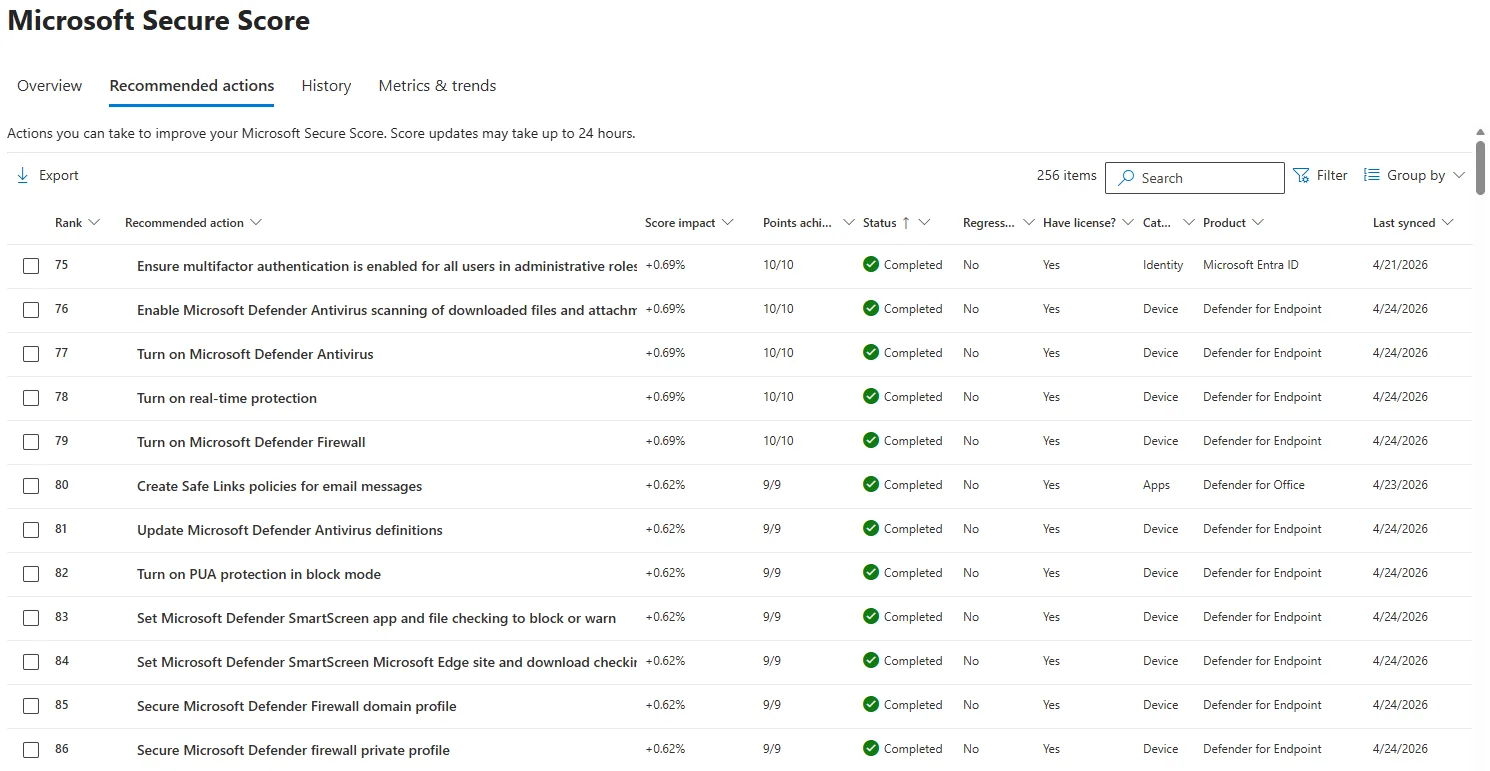
📷 Εικόνα 2: Η λίστα Recommended actions.
Κάθε γραμμή έχει τις στήλες Rank, Recommended action, Score impact, Points achieved, Status, Regressed, Have license?, Category, Product και Last synced. Πάνω από τη λίστα, η Microsoft σημειώνει ότι η βαθμολογία μπορεί να χρειαστεί έως 24 ώρες για να ενημερωθεί. Αν διορθώσεις κάτι και δεν δεις αλλαγή αμέσως, αυτός είναι ο λόγος.
Για την πρώτη σου φορά, διάλεξε ένα recommendation που σου ακούγεται γνώριμο. Καλές επιλογές:
- «Ensure multifactor authentication is enabled for all users in administrative roles»
- «Enable Conditional Access policies to block legacy authentication»
- «Create Safe Links policies for email messages»
- «Turn on Microsoft Defender Firewall»
Πάτα πάνω σε ένα από αυτά. Στα δεξιά ανοίγει ένα panel με τις λεπτομέρειες. Εκεί θα περάσουμε τα επόμενα δέκα λεπτά, ίσως και περισσότερα.
Κάθε πεδίο του recommendation, ένα προς ένα
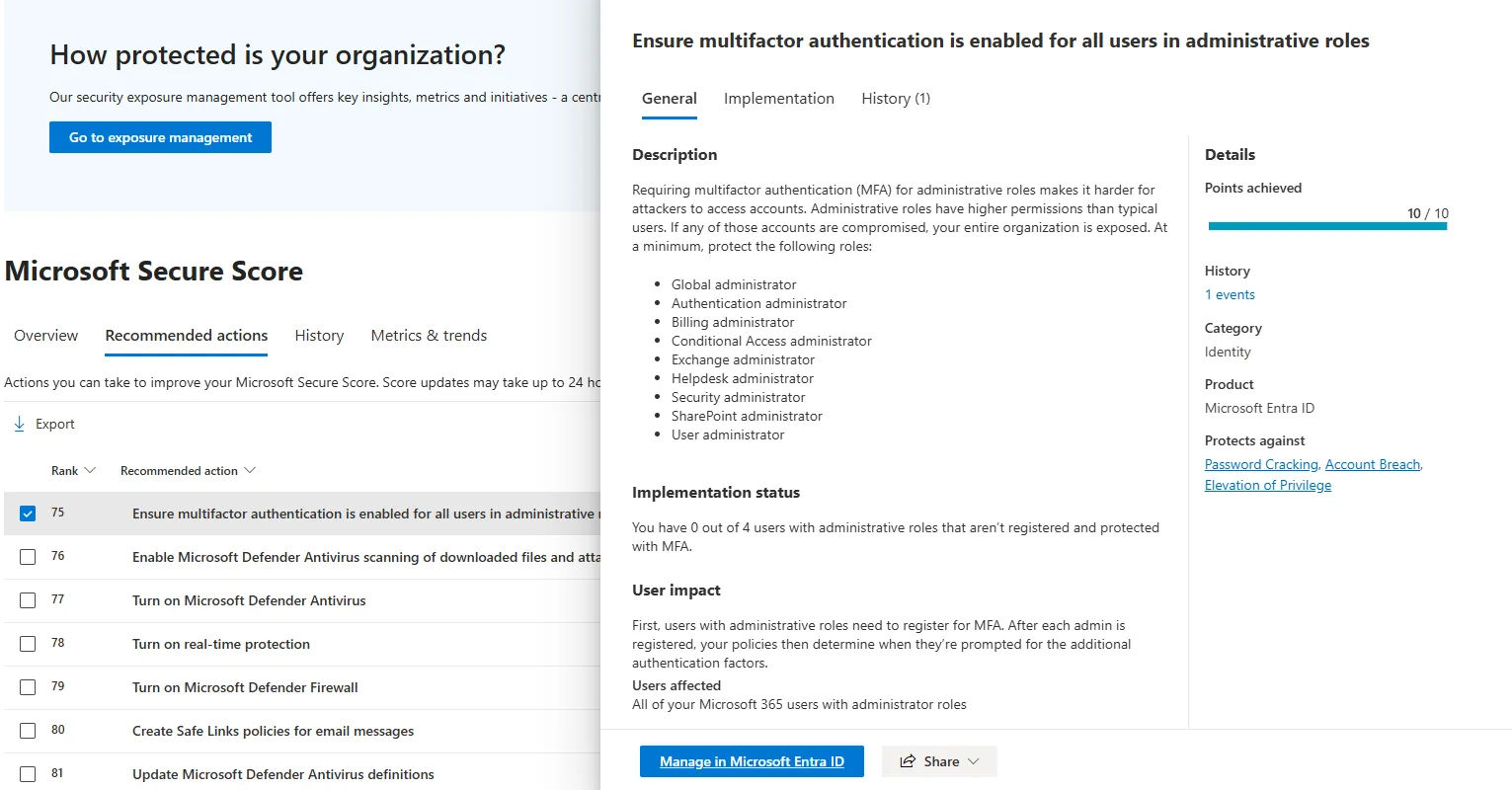
📷 Εικόνα 3: Το panel ενός recommendation, καρτέλα General.
Το panel έχει τρεις καρτέλες: General, Implementation και History. Ας τις πάρουμε με τη σειρά, από πάνω προς τα κάτω.
Ο τίτλος
Μια σύντομη περιγραφή του control. Παράδειγμα: «Ensure multifactor authentication is enabled for all users in administrative roles».
Αυτό που αξίζει να προσέξεις: τον τίτλο τον έγραψε η Microsoft, όχι ο οργανισμός σου. Οι τίτλοι είναι ίδιοι σε κάθε tenant του Microsoft 365. Όταν ψάχνεις βοήθεια για ένα συγκεκριμένο recommendation, ψάξε τον ακριβή τίτλο. Θα βρεις την επίσημη τεκμηρίωση της Microsoft και άρθρα της κοινότητας που αναφέρονται σε αυτόν.
Description
Μια παράγραφος της Microsoft που εξηγεί γιατί υπάρχει αυτό το recommendation: ποια επίθεση ή ποιον κίνδυνο αντιμετωπίζει και τι γίνεται αν δεν ρυθμιστεί. Στο παράδειγμα της Εικόνας 3, εξηγεί γιατί οι λογαριασμοί διαχείρισης χρειάζονται MFA και ποιους ρόλους να προστατέψεις τουλάχιστον.
Μια μικρή αλλά χρήσιμη συμβουλή: διάβαζε αυτή την παράγραφο κάθε φορά, ακόμα κι όταν ο τίτλος φαίνεται προφανής. Όταν καταλαβαίνεις γιατί υπάρχει ένα recommendation, μπορείς να το υποστηρίξεις όταν κάποιος αντιδρά στην εφαρμογή του.
Implementation status
Εδώ η Microsoft σου λέει την πραγματική κατάσταση στο tenant σου, με αριθμούς. Για παράδειγμα: «You have 0 out of 4 users with administrative roles that aren’t registered and protected with MFA».
Είναι το πιο χρήσιμο πεδίο όταν ένα recommendation είναι μισοτελειωμένο. Τα περισσότερα recommendations μετρούν «όλα ή τίποτα», κάποια όμως δίνουν μέρος των πόντων ανάλογα με το πόσο έχουν εφαρμοστεί: αν ένα τέτοιο αφορά 100 χρήστες και έχεις προστατέψει τους 50, παίρνεις τους μισούς πόντους. Το Implementation status σου δείχνει τι λείπει.
User impact
Τι θα δουν οι χρήστες σου όταν εφαρμόσεις το recommendation. Η Microsoft το περιγράφει με κείμενο, και από κάτω, στο Users affected, γράφει ποιους αφορά.
Αυτή η πληροφορία συχνά παραβλέπεται. Μην την παραβλέψεις. Ένα recommendation που αλλάζει την καθημερινότητα όλων των χρηστών μπορεί να αξίζει, αλλά να είσαι έτοιμος για ερωτήσεις, αιτήματα στο helpdesk και ίσως ένα πλάνο επικοινωνίας. Ένα recommendation που αφορά μόνο τους διαχειριστές μπορεί συνήθως να εφαρμοστεί χωρίς θόρυβο.
Details: Points achieved, Category, Product, Protects against
Στη δεξιά στήλη του panel βρίσκεις τα στοιχεία που χρειάζεσαι για να ιεραρχήσεις:
- Points achieved: πόσους πόντους έχεις πάρει από το μέγιστο του recommendation (π.χ. 10 / 10). Κάθε recommendation αξίζει το πολύ 10 πόντους.
- Category: μία από τις τέσσερις ομάδες της σελίδας Overview: Identity, Data, Device ή Apps.
- Product: το προϊόν από το οποίο έρχεται το recommendation, π.χ. Microsoft Entra ID, Defender for Endpoint, Defender for Office ή Defender for Identity.
- Protects against: τις κατηγορίες επιθέσεων που αντιμετωπίζει, π.χ. Password Cracking, Account Breach, Elevation of Privilege.
Γιατί έχει σημασία το Product: δείχνει σε ποιο προϊόν θα γίνει η ρύθμιση και ποια άδεια χρειάζεται. Αν στη στήλη Have license? της λίστας βλέπεις «No», το recommendation αφορά προϊόν για το οποίο δεν έχεις άδεια. Και αν τα recommendations του Device είναι λίγα, συνήθως σημαίνει ότι το Microsoft Defender for Endpoint δεν έχει αναπτυχθεί ακόμα σε όλες τις συσκευές σου, όχι ότι οι συσκευές σου δεν έχουν προβλήματα.
Score impact
Στη λίστα Recommended actions, η στήλη Score impact σου λέει πόσο θα ανέβει η συνολική βαθμολογία, σε ποσοστιαίες μονάδες, αν ολοκληρώσεις το recommendation. Για παράδειγμα +0.69%.
Πρόσεξε τη διαφορά από το Points achieved: οι πόντοι είναι απόλυτος αριθμός (έως 10 ανά recommendation), ενώ το Score impact είναι το αποτέλεσμα αυτών των πόντων πάνω στο σύνολο. Σε ένα tenant με 1442 πόντους συνολικά, οι 10 πόντοι ενός recommendation είναι περίπου 0.69%.
Η καρτέλα Implementation
Εδώ βρίσκεις οδηγίες εφαρμογής βήμα προς βήμα: τις προϋποθέσεις (Prerequisites, π.χ. ποια άδεια χρειάζεσαι), τα επόμενα βήματα (Next steps) με links στις σωστές οθόνες, και τεκμηρίωση της Microsoft (Learn more).
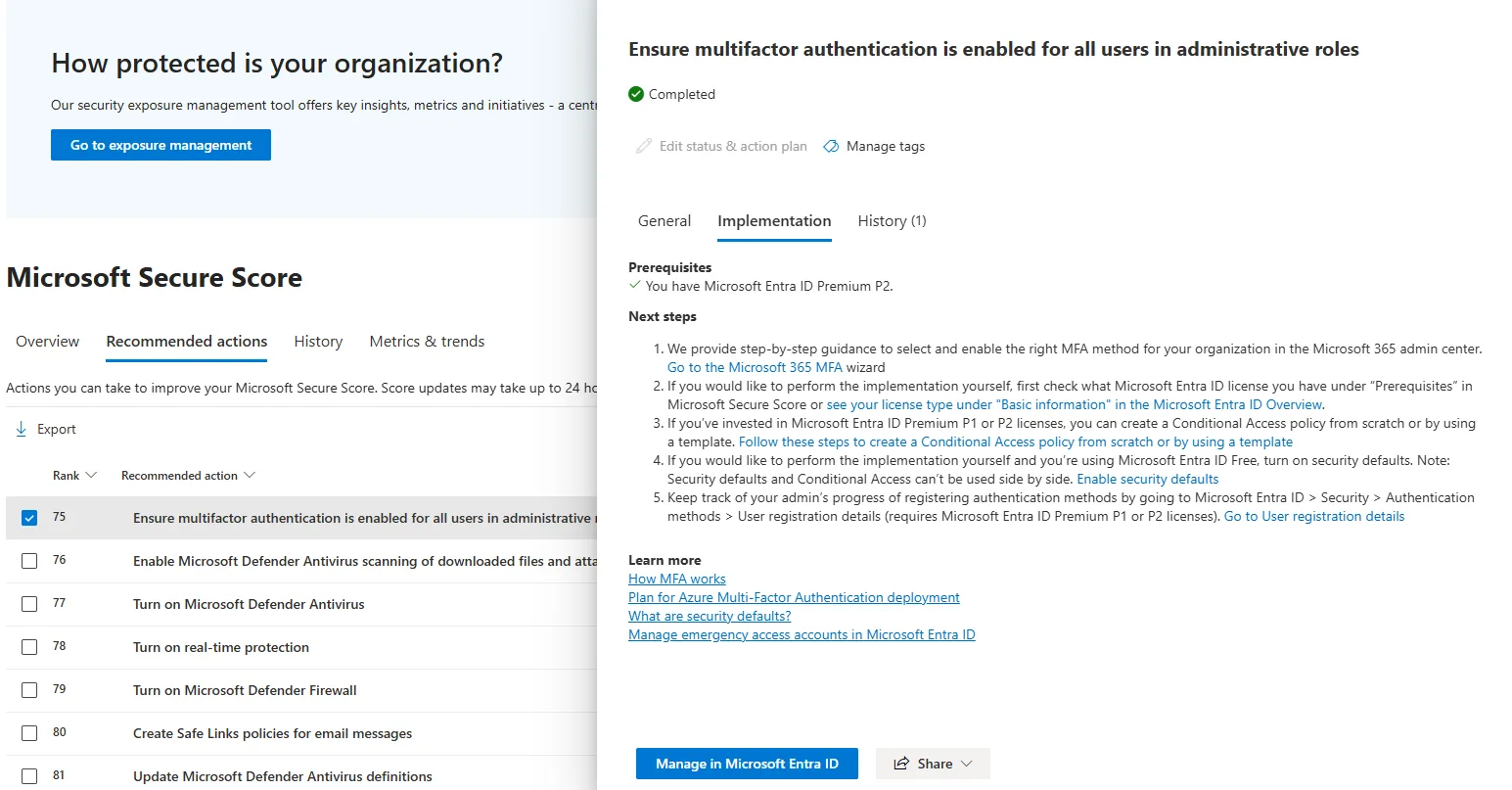
📷 Εικόνα 4: Η καρτέλα Implementation.
Για κάποιον που μόλις ξεκινά, αυτό είναι το πιο χρήσιμο κομμάτι του Microsoft Secure Score. Η Microsoft έχει ουσιαστικά γράψει την τεκμηρίωση αποκατάστασης για σένα. Διάβασέ την και ακολούθησέ την. Σε πολλά recommendations θα μπορέσεις να κάνεις την αλλαγή σε δέκα λεπτά, χωρίς άλλη πηγή.
Στην ίδια καρτέλα βρίσκεις και δύο κουμπιά που θα χρησιμοποιείς συχνά:
- Edit status & action plan: εδώ αλλάζεις την κατάσταση του recommendation (περισσότερα στην επόμενη ενότητα).
- Manage tags: δικές σου ετικέτες, π.χ. «Q4» ή «ISO 27001», για να φιλτράρεις αργότερα τη λίστα. Τις ετικέτες τις βάζεις εσύ, όχι η Microsoft.
Στο κάτω μέρος του panel, το κουμπί Manage in (π.χ. Manage in Microsoft Entra ID) σε πηγαίνει κατευθείαν στην οθόνη όπου γίνεται η ρύθμιση. Το Share στέλνει το recommendation σε συνάδελφο μέσω email, Teams ή Planner.
Η καρτέλα History
Τι άλλαξε και πότε σε αυτό το recommendation, π.χ. αλλαγές κατάστασης και πόντων. Είναι αυτό που θα θέλει να δει ένας ελεγκτής όταν ρωτήσει «από πότε ισχύει αυτό;».
Οι καταστάσεις ενός recommendation
Η κατάσταση (Status) είναι το πεδίο που αλλάζεις εσύ, από το Edit status & action plan. Οι τιμές είναι:
- To address: το control δεν έχει ρυθμιστεί, ή έχει ρυθμιστεί μόνο εν μέρει.
- Planned: υπάρχει συγκεκριμένο πλάνο για να γίνει.
- Risk accepted: αποφασίστηκε να μη γίνει, και ο κίνδυνος γίνεται αποδεκτός. Δεν δίνει πόντους. Μπορεί να αναιρεθεί οποιαδήποτε στιγμή.
- Resolved through third party: το καλύπτει εργαλείο άλλου κατασκευαστή. Δίνει πόντους, αλλά η Microsoft δεν μπορεί να το επαληθεύσει.
- Resolved through alternate mitigation: το καλύπτει εσωτερικό εργαλείο ή άλλη ρύθμιση. Δίνει πόντους, με την ίδια επιφύλαξη.
- Completed: η Microsoft επιβεβαιώνει από τα δικά της δεδομένα ότι το control έχει εφαρμοστεί πλήρως. Αυτή την κατάσταση δεν την επιλέγεις εσύ. Αλλάζει μόνη της όταν ο αυτόματος έλεγχος βρει τη ρύθμιση.
Για τα recommendations της κατηγορίας Device, η κατάσταση δεν αλλάζει από εδώ. Το panel σε στέλνει στο αντίστοιχο recommendation του Microsoft Defender Vulnerability Management.
Γιατί έχει σημασία: το Risk accepted και τα δύο Resolved είναι αποφάσεις. Κάποιος πρέπει να μπορεί να εξηγήσει γιατί πάρθηκαν, οπότε γράψε πάντα σημείωση με τον λόγο, το όνομά σου και την ημερομηνία.
Τέσσερις μικρές συνήθειες που κάνουν τα πάντα πιο εύκολα
Κάποιες δεν είναι προφανείς, αλλά σου γλιτώνουν πραγματικό χρόνο καθώς εξοικειώνεσαι με την πλατφόρμα.
Συνήθεια 1: Διάβαζε πάντα και τον τίτλο και το Description
Ο τίτλος μόνος του συχνά δεν αρκεί. Δύο recommendations μπορεί να έχουν παρόμοιο τίτλο και να αφορούν διαφορετικά controls. Η πρώτη πρόταση του Description είναι ο γρηγορότερος τρόπος να μη μπερδευτείς.
Συνήθεια 2: Φίλτραρε ανά Category πριν ιεραρχήσεις
Αντί να κάνεις scroll σε 250 recommendations, φίλτραρε σε μία κατηγορία (Identity, για παράδειγμα) και ιεράρχησε μέσα σε αυτή. Οι βελτιώσεις συνήθως πάνε ανά κατηγορία: τρία ή τέσσερα recommendations του Identity μαζί είναι πιο αποδοτικά από το να πηγαίνεις από περιοχή σε περιοχή.
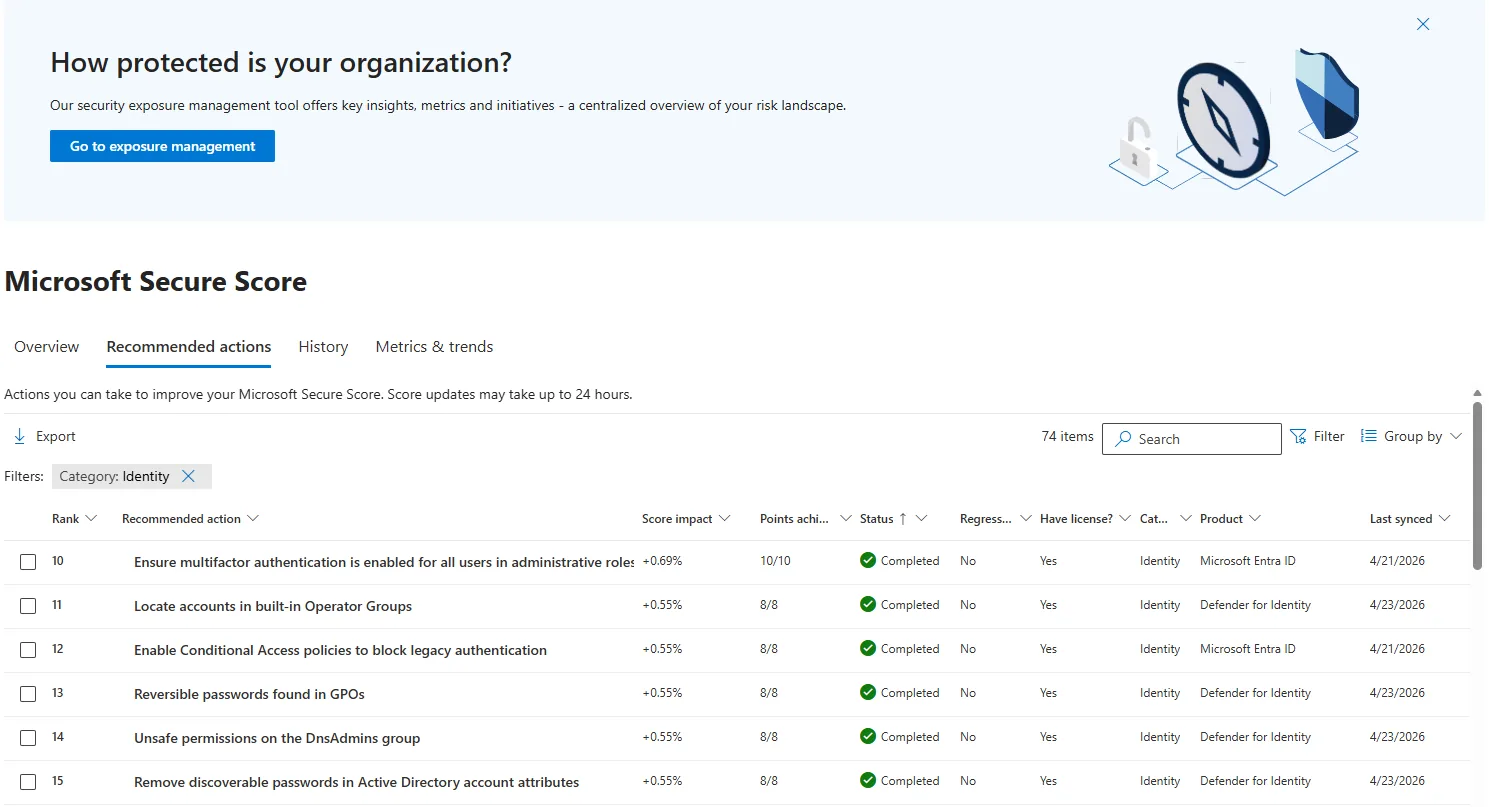
📷 Εικόνα 5: Η λίστα Recommended actions με φίλτρο Category: Identity.
Συνήθεια 3: Ταξινόμησε με Score impact, όχι με Status
Η προεπιλεγμένη σειρά είναι το Rank, η ιεράρχηση της Microsoft. Λαμβάνει υπόψη τους πόντους που απομένουν, τη δυσκολία εφαρμογής, την επίδραση στους χρήστες και την πολυπλοκότητα, και είναι καλή αφετηρία. Όταν όμως είσαι καινούριος και θέλεις γρήγορα αποτελέσματα, η ταξινόμηση με Score impact (από το μεγαλύτερο) σου δείχνει πρώτα αυτά που αξίζουν περισσότερο. Δύο ή τρία από αυτά φέρνουν ορατή βελτίωση στον συνολικό αριθμό, και αυτό χτίζει αυτοπεποίθηση και ρυθμό.
Συνήθεια 4: Αν ένα recommendation σε μπερδεύει, ψάξε τον ακριβή τίτλο στο Microsoft Learn
Αντίγραψε ολόκληρο τον τίτλο και ψάξ’ τον στο Google με site:learn.microsoft.com. Σχεδόν πάντα θα βρεις τεκμηρίωση της Microsoft που εξηγεί το control πιο αναλυτικά από το ίδιο το panel. Είναι το μυστικό σου όπλο.
Τι μπορείς να βγάλεις σε λιγότερο από μία ώρα
Αν το κάνεις πρώτη φορά σήμερα, ένας ρεαλιστικός στόχος για 60 λεπτά:
- Λεπτά 0 έως 10: Άνοιξε το Microsoft Secure Score, διάβασε τη σελίδα Overview και σημείωσε τη συνολική βαθμολογία.
- Λεπτά 10 έως 25: Άνοιξε πέντε recommendations από διαφορετικές κατηγορίες. Διάβασε σε καθένα τίτλο, Description, Implementation status και την καρτέλα Implementation. Μην αλλάξεις τίποτα.
- Λεπτά 25 έως 40: Ταξινόμησε τη λίστα με Score impact. Βρες τα τρία με τη μεγαλύτερη επίδραση που είναι ακόμα «To address».
- Λεπτά 40 έως 55: Για ένα από τα τρία, διάβασε προσεκτικά την καρτέλα Implementation. Εκτίμησε αν μπορείς να το κάνεις με ασφάλεια σήμερα ή αν θέλει σχεδιασμό.
- Λεπτά 55 έως 60: Γράψε τα τρία recommendations που βρήκες. Ρώτα τον προϊστάμενο ή έναν πιο έμπειρο συνάδελφο αν κάποιο από αυτά μπορεί να γίνει άμεσα.
Είναι μια πολύ χρήσιμη άσκηση για την πρώτη μέρα. Δεν χρειάζεται να εφαρμόσεις τίποτα ακόμα. Αν καταλαβαίνεις τι δείχνει η σελίδα και μπορείς να πεις «αυτά τα τρία θα ανέβαζαν τη βαθμολογία γρηγορότερα αν τα εφαρμόζαμε», είσαι ήδη μπροστά από τους περισσότερους νέους συναδέλφους στην πρώτη τους μέρα.
Πού να συνεχίσεις από εδώ
Στο Μέρος 2 βγαίνουμε από το ένα recommendation και κοιτάμε πού ακριβώς βρίσκεται το Microsoft Secure Score μέσα στο Microsoft Defender portal και, κυρίως, ποια προϊόντα το τροφοδοτούν: Microsoft Entra ID, Microsoft Defender for Endpoint, Microsoft Defender for Office 365, Microsoft Defender for Cloud Apps και Microsoft Purview. Θα μάθεις και πώς εντοπίζεις από ποιο προϊόν προέρχεται ένας συγκεκριμένος πόντος.
🔗 Θέλεις πρώτα μια περιήγηση στην οικογένεια Microsoft Defender; Ξεκίνα από το Microsoft Defender Μέρος 1: Όλα τα προϊόντα και ποιο χρειάζεσαι, το πρώτο άρθρο της σειράς Defender Demystified.
🔗 Θέλεις το Secure Score από την οπτική της συμμόρφωσης; Ο Πρακτικός Οδηγός για τον ΥΑΣΠΕ δείχνει πώς ιεραρχείς τα recommendations για τον ν. 5160/2024. Οι καταστάσεις To address, Planned και Risk accepted που είδαμε εδώ είναι το πλάνο αντιμετώπισης κινδύνων που ζητά η απαίτηση 5.1.γ του οδηγού της ΚΥΑ 1689/2025. Τα ίδια recommendations αντιστοιχούν σε controls του ISO/IEC 27001, όπως το A.8.9 (Configuration management).
Ακολούθησέ με στο LinkedIn για ειδοποιήσεις νέων άρθρων.
Πηγές και επαλήθευση
Επιπλέον πηγές: