

Φτάσαμε στο τέλος
Σε τέσσερα άρθρα φτιάξαμε την πλήρη εικόνα της οικογένειας του Microsoft Defender:
- Μέρος 1: όλη η οικογένεια, όπως την οργανώνει η ίδια η Microsoft.
- Μέρος 2: τα τέσσερα βασικά workloads του XDR.
- Μέρος 3: το Microsoft Defender for Cloud για Azure και multicloud.
- Μέρος 4: ποιο πλάνο να αγοράσεις.
Ήρθε η ώρα να ανοίξουμε την ίδια την πλατφόρμα. Αυτό το τελευταίο άρθρο είναι μια πρακτική περιήγηση στο ενιαίο Microsoft Defender portal στο security.microsoft.com, τη μία κονσόλα όπου ζουν όλα όσα είδαμε. Άνοιξε το portal σε ένα άλλο tab και διάβαζε παράλληλα. Στο τέλος θα ξέρεις πού βρίσκεται το καθετί και τι να πατήσεις πρώτα.
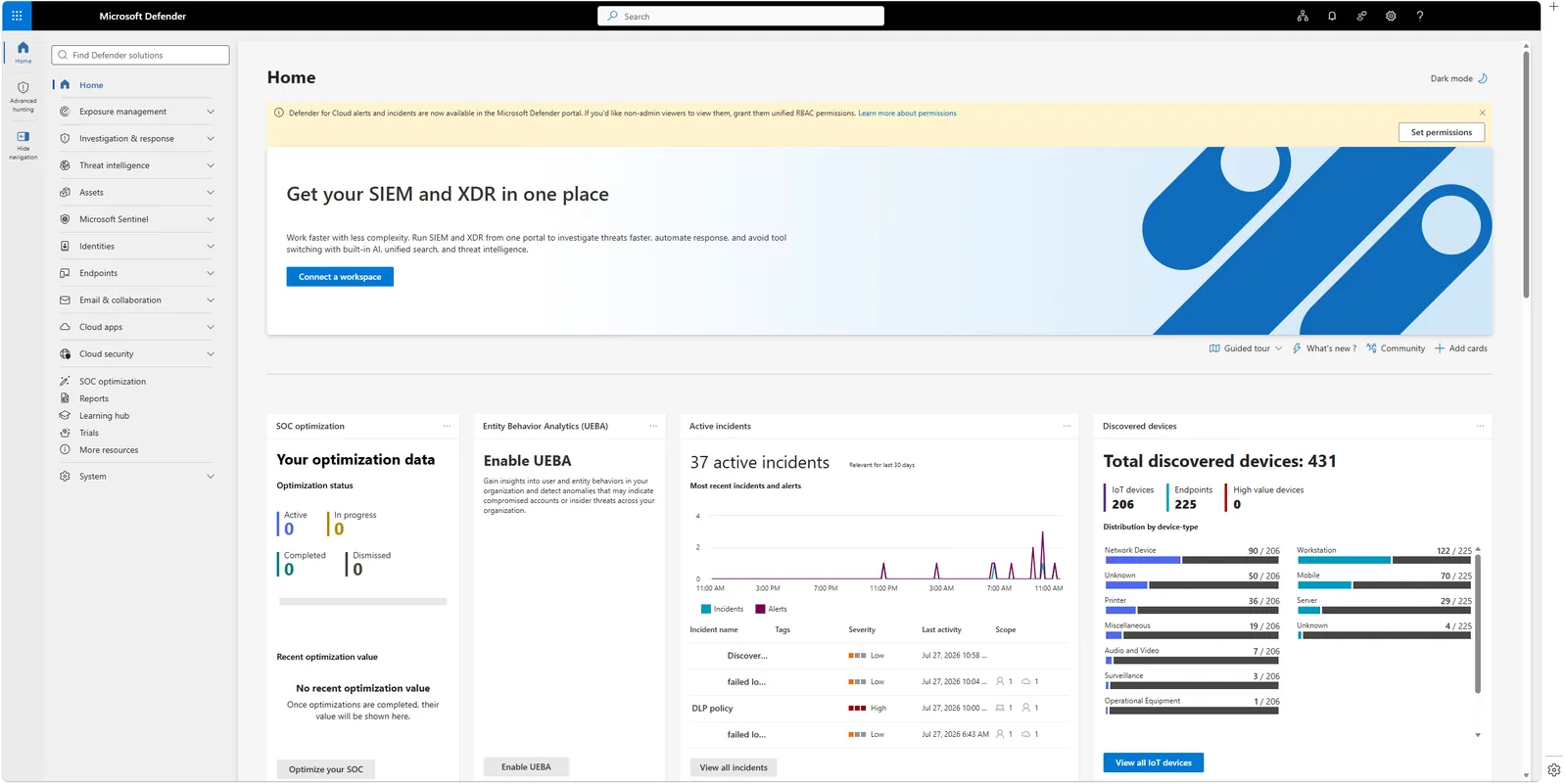
📷 Εικόνα 1: Η αρχική σελίδα του Microsoft Defender portal, το dashboard σου για incidents, Microsoft Secure Score και threat analytics.
Το portal σε μία πρόταση
Το Microsoft Defender portal ενώνει το Microsoft Defender XDR (endpoint, email, ταυτότητα, SaaS), το Microsoft Defender for Cloud (workloads σε Azure και άλλα clouds), το Microsoft Sentinel (SIEM), το Microsoft Security Exposure Management (στάση ασφάλειας και Secure Score) και το Microsoft Security Copilot (βοήθεια από AI) σε ένα μενού. Το τι βλέπει κάθε tenant εξαρτάται από τις άδειές του: η Microsoft εμφανίζει μόνο τις ενότητες που περιλαμβάνει η συνδρομή σου.
Το Microsoft Sentinel είναι γενικά διαθέσιμο μέσα στο Defender portal, και η αυτόνομη εμπειρία του Sentinel στο Azure portal αποσύρεται στις 31 Μαρτίου 2027, ημερομηνία που η Microsoft μετέθεσε από την 1η Ιουλίου 2026 μετά από σχόλια πελατών. Αν πηγαινοέρχεσαι ακόμη ανάμεσα στο Azure portal και στο security.microsoft.com, κουράζεσαι περισσότερο απ’ όσο χρειάζεται.
Το μενού, από πάνω προς τα κάτω
Το μενού αριστερά είναι ο χάρτης. Κάθε βασική ενότητα, με τη σειρά που τη βλέπεις.
Home
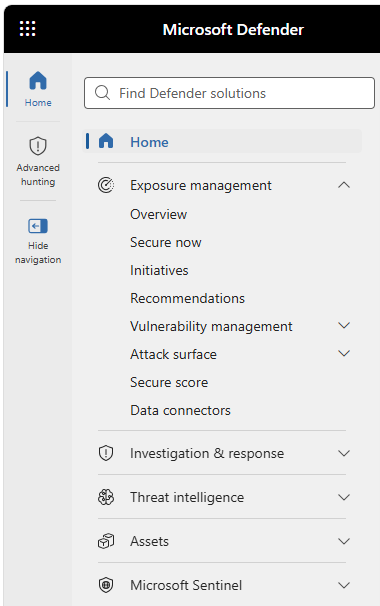
📷 Εικόνα 2α: Το μενού του Microsoft Defender portal, πάνω μέρος, από το Home μέχρι το Threat intelligence.
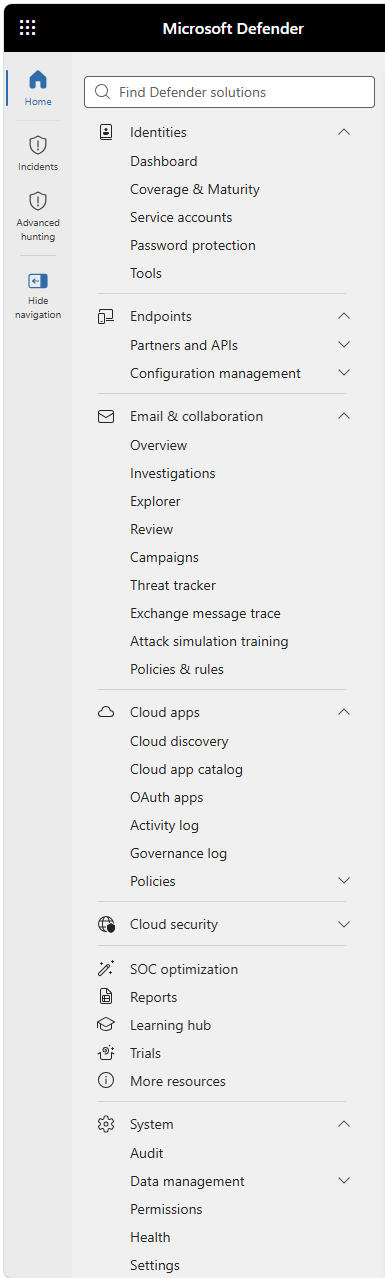
📷 Εικόνα 2β: Το μενού του Microsoft Defender portal, κάτω μέρος, από το Assets μέχρι το System settings.
Η σελίδα Home είναι το dashboard σου: ενεργά incidents, πρόσφατα alerts, η εξέλιξη του Microsoft Secure Score, επιλεγμένες αναφορές threat analytics και, για πελάτες του Microsoft Defender Experts for XDR, μια κάρτα με την κατάσταση της υπηρεσίας. Προσαρμόζεις τις κάρτες με το Add cards πάνω δεξιά, ανάλογα με τον ρόλο σου.
Για έναν υπεύθυνο ασφάλειας ή IT, αυτή είναι η σελίδα του πρωινού καφέ. Ένας αναλυτής SOC θα περνά περισσότερο χρόνο πιο κάτω, στο Investigation & response.
Exposure management, όπου ζει πλέον το Microsoft Secure Score
Αυτή είναι η ενότητα που οι περισσότεροι προσπερνούν, γιατί το όνομα είναι σχετικά νέο για κάτι που παλιά ήταν σκόρπιες λειτουργίες. Το Microsoft Security Exposure Management είναι η ενιαία εικόνα της στάσης ασφάλειας στη Microsoft: η συνολική βαθμολογία έκθεσης, η επιφάνεια επίθεσης, η κάλυψη των κρίσιμων assets, και μερικά πράγματα που αξίζει να τα πούμε με το όνομά τους:
- Microsoft Secure Score: μεταφέρθηκε εδώ από την προηγούμενη θέση του και βρίσκεται πλέον δίπλα στη συνολική εικόνα της έκθεσης.
- Recommendations με προτεραιότητα ανάλογα με τον κίνδυνο, όχι μόνο ανάλογα με την απόκλιση από τις ρυθμίσεις.
- Attack paths: προγνωστική ανάλυση του πώς θα μπορούσε να κινηθεί ένας επιτιθέμενος στο περιβάλλον σου.
Αν έχεις διαβάσει τη σειρά Microsoft Secure Score ως εργαλείο GRC για ISO 27001 & NIS2, εδώ ζει όλο εκείνο το πρόγραμμα. Τα δεδομένα του Microsoft Secure Score που τροφοδοτούν τη συμμόρφωση έρχονται κατευθείαν από αυτή τη σελίδα.
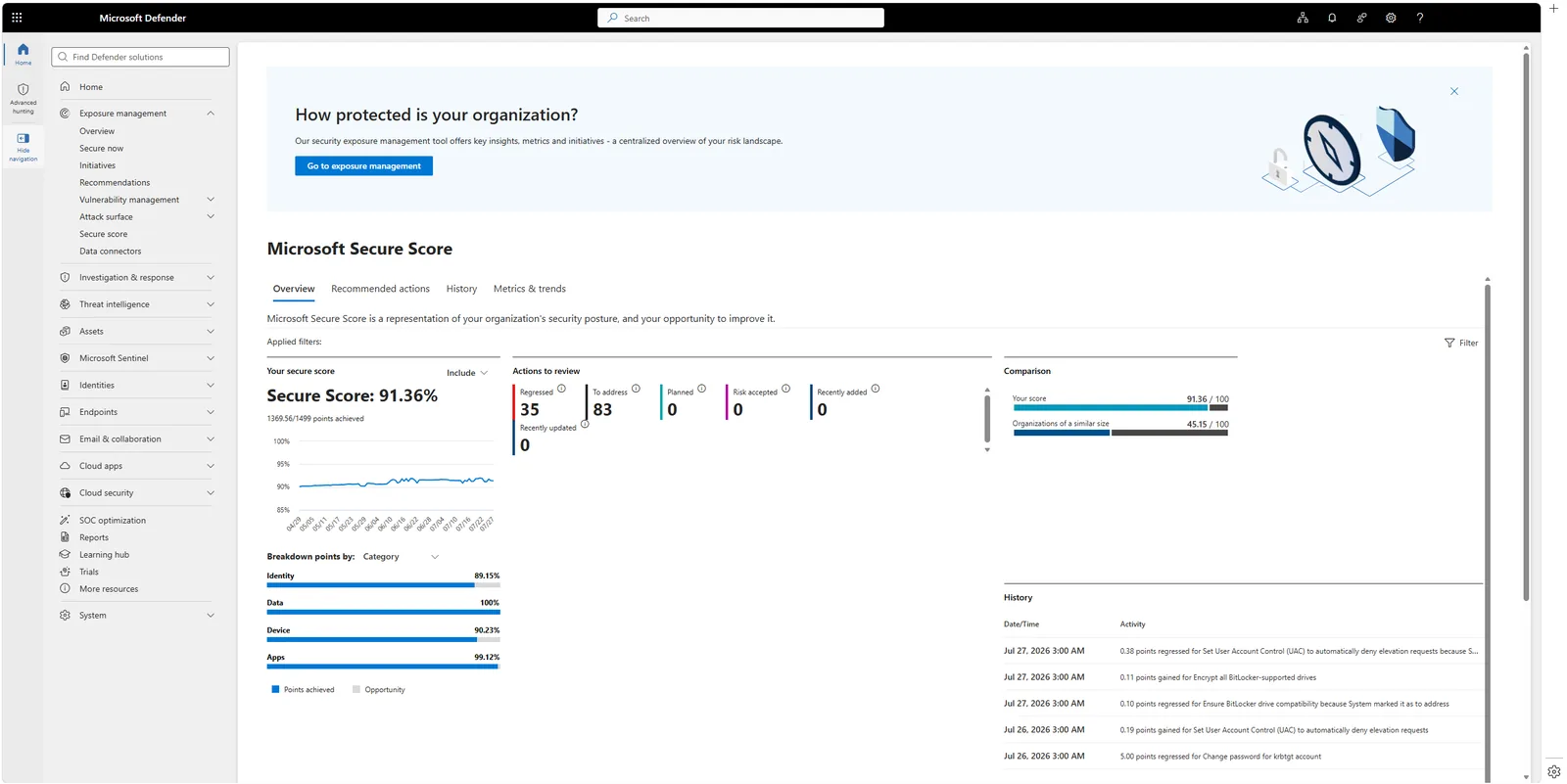
📷 Εικόνα 3: Το Microsoft Secure Score ζει πλέον κάτω από το Exposure management, με βαθμολογία, εξέλιξη και recommendations με προτεραιότητα σε μία σελίδα.
Investigation & response, η καρδιά του SOC
Εδώ ζουν οι αναλυτές SOC. Τρεις υποενότητες:
- Incidents & alerts: η ενιαία ουρά. Κάθε alert από κάθε workload (Microsoft Defender for Endpoint, Office 365, Identity, Cloud Apps, Defender for Cloud, analytics rules του Sentinel) καταλήγει εδώ και ομαδοποιείται αυτόματα σε incidents που μοιράζονται οντότητες, χρονολόγιο ή στάδια επίθεσης.
- Hunting: προληπτική αναζήτηση στο telemetry σου. Η κεντρική λειτουργία είναι το Advanced hunting με Kusto Query Language (KQL).
- Threat analytics: αναφορές απειλών από τη Microsoft, συνδεδεμένες με τα δεδομένα του tenant σου. Μόλις δημοσιευτούν οι τεχνικές ενός νέου threat actor, βλέπεις αν κάτι στο περιβάλλον σου ταιριάζει.
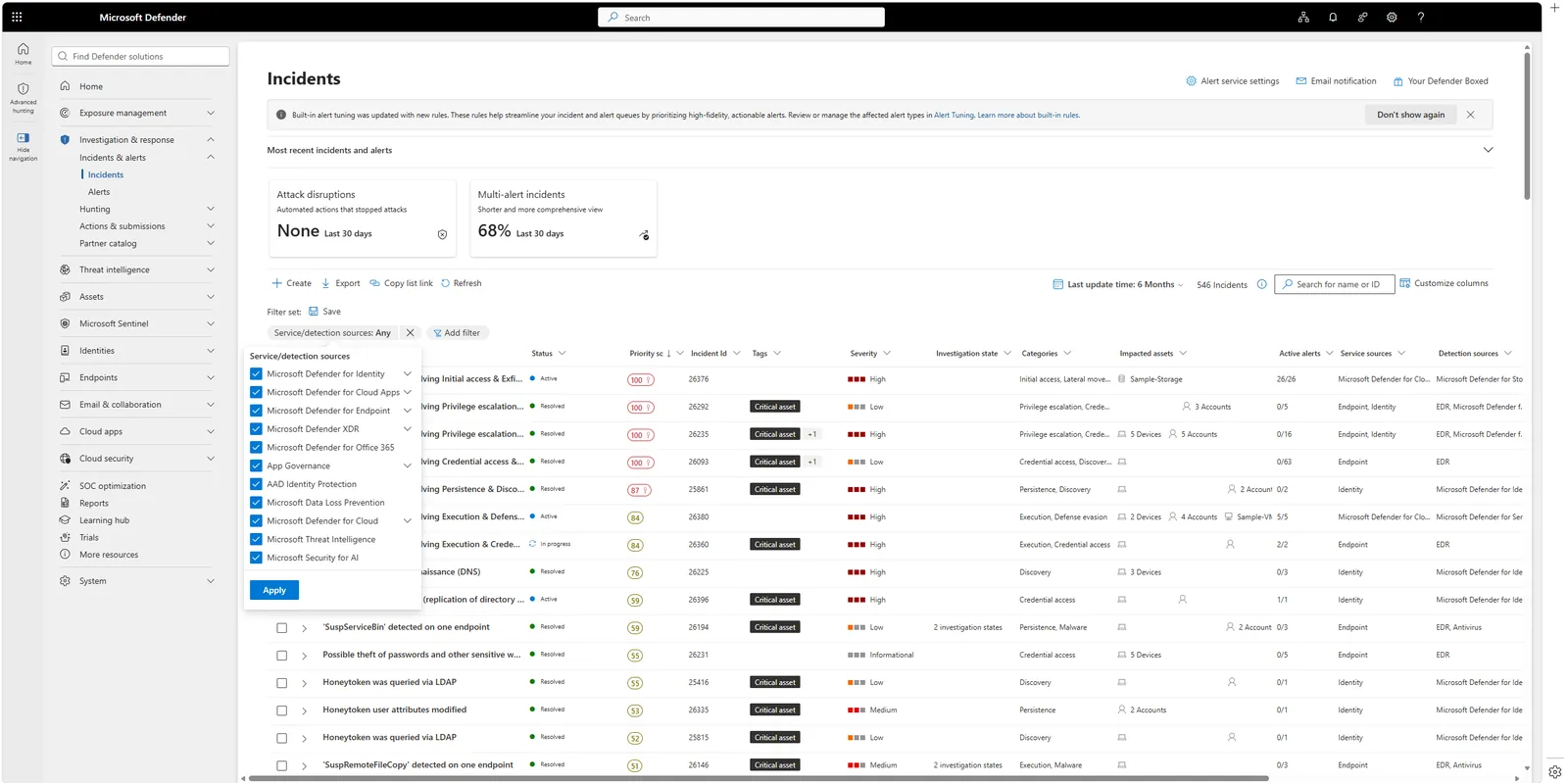
📷 Εικόνα 4: Μία ουρά για όλα τα workloads. Η στήλη Service sources δείχνει ποιο προϊόν Defender έβγαλε κάθε incident.
Ένα απλό KQL query για την πρώτη σου δοκιμή στο Advanced hunting. Δείχνει τις συνδέσεις των τελευταίων 24 ωρών ανά χώρα:
SigninLogs
| where TimeGenerated > ago(24h)
| summarize SigninCount = count() by Location
| order by SigninCount desc
Ο πίνακας SigninLogs είναι πίνακας του Microsoft Sentinel και εμφανίζεται στο Advanced hunting μόνο αν έχεις συνδέσει workspace του Sentinel στο Defender portal. Αν έχεις Microsoft Entra ID P2 αλλά όχι Sentinel, χρησιμοποίησε τον πίνακα του Defender XDR EntraIdSignInEvents, που αντικαθιστά τον AADSignInEventsBeta. Αν δεν έχεις τίποτα από τα δύο, το παρακάτω τρέχει μόνο με δεδομένα του Microsoft Defender for Endpoint:
DeviceInfo
| where Timestamp > ago(7d)
| summarize arg_max(Timestamp, OSPlatform, OSVersion, DeviceType) by DeviceId, DeviceName
| where isnotempty(OSPlatform)
| summarize DeviceCount = count() by OSPlatform, OSVersion, DeviceType
| order by DeviceCount desc
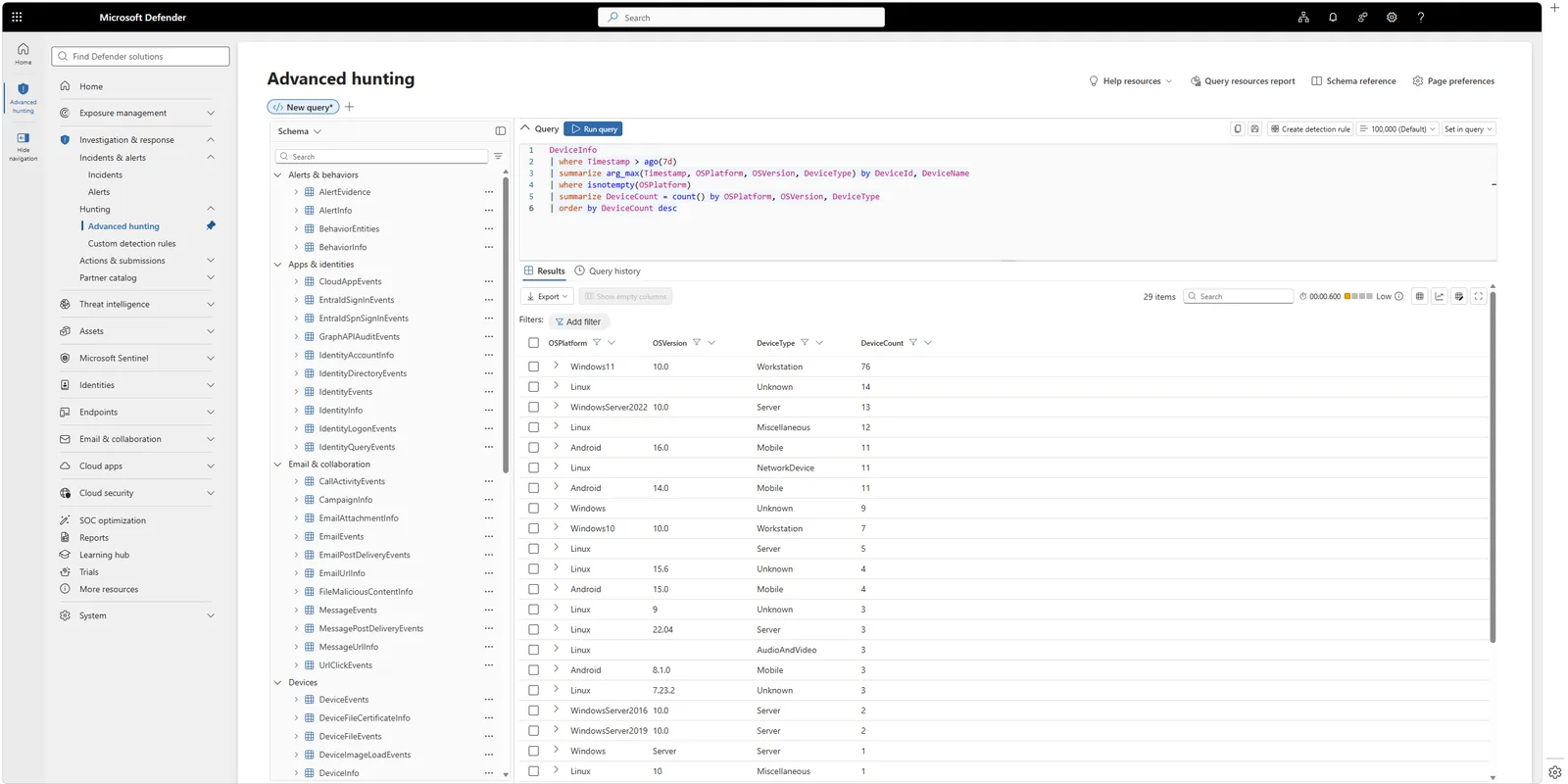
📷 Εικόνα 5: Το Advanced hunting με ένα KQL query: πλήρης απογραφή συσκευών σε πέντε γραμμές, μόνο με δεδομένα του Defender for Endpoint.
🎯 Θέλεις κι άλλα έτοιμα queries; Η Βιβλιοθήκη KQL έχει Advanced Hunting queries αντιστοιχισμένα σε απαιτήσεις της ΚΥΑ 1689/2025, της Οδηγίας NIS2, του ISO/IEC 27001 και του GDPR, το καθένα δοκιμασμένο σε πραγματικό tenant. Αν έχεις τον πίνακα
EntraIdSignInEvents, ένα καλό επόμενο βήμα είναι το query για sign-ins με legacy authentication.
Threat intelligence
Δύο βασικές σελίδες:
- Threat analytics (υπάρχει και στο Investigation & response): αναφορές του Microsoft Threat Intelligence, ταξινομημένες ανάλογα με το πόσο αφορούν το tenant σου.
- Το περιεχόμενο του πρώην Microsoft Defender Threat Intelligence (προφίλ threat actors, IOCs, παρακολούθηση υποδομών), που από τον Αύγουστο του 2026 είναι ενσωματωμένο εδώ χωρίς επιπλέον κόστος.
Για τους περισσότερους οργανισμούς, οι αναφορές του threat analytics είναι από μόνες τους το πιο χρήσιμο περιεχόμενο εδώ. Αξίζει μια ματιά κάθε εβδομάδα.
Assets
Μια ενιαία σελίδα απογραφής: συσκευές, χρήστες, mailboxes, εφαρμογές. Ανοίγεις οποιοδήποτε asset και βλέπεις το πλήρες προφίλ κινδύνου, τα πρόσφατα alerts και τις σχέσεις με άλλες οντότητες. Αυτή η σελίδα μετατρέπει το «βγήκε alert στο host XYZ» σε «αυτό είναι το laptop του οικονομικού διευθυντή, αυτά συμβαίνουν πάνω του, και αυτές είναι οι δύο άλλες συσκευές από τις οποίες συνδέεται συνήθως».
Microsoft Sentinel, πλέον μέσα στο portal
Αν έχεις συνδέσει ένα Log Analytics workspace με ενεργό το Microsoft Sentinel, οι ενότητες του Sentinel εμφανίζονται στο μενού: analytics rules, hunting, workbooks, automation, content hub, data connectors. Το Microsoft Sentinel στο Defender portal είναι το ίδιο SIEM που ίσως ξέρεις από το Azure portal, αλλά δεμένο με το μοντέλο incidents του Microsoft Defender XDR. Ένα alert από κανόνα του Sentinel μπορεί πλέον να συσχετιστεί με σήματα του Defender XDR σε ένα ενιαίο incident.
Αυτή η ενσωμάτωση είναι από τις σημαντικότερες βελτιώσεις του Microsoft Security των τελευταίων ετών, και ο λόγος που η Microsoft αποσύρει την εμπειρία του Sentinel στο Azure portal. Αν αναβάλλεις τη μετάβαση, βάλ’ τη στη λίστα σου πριν από τον Μάρτιο του 2027.
Οι τέσσερις ενότητες των workloads: Endpoints, Email & collaboration, Identities, Cloud apps
Αυτές είναι οι ενότητες για τα τέσσερα προϊόντα που είδαμε στο Μέρος 2. Εδώ γίνεται το μεγαλύτερο μέρος της καθημερινής διαχείρισης κάθε workload:
- Endpoints: απογραφή συσκευών, ευπάθειες, απογραφή λογισμικού, security baselines, κανόνες attack surface reduction, πολιτικές του Microsoft Defender for Endpoint.
- Email & collaboration: Threat Explorer, Submissions, Quarantine, Attack simulation training, οι πολιτικές anti-phishing, anti-spam και anti-malware του Microsoft Defender for Office 365.
- Identities: χρονολόγια ταυτοτήτων, παρακολούθηση ευαίσθητων ομάδων, identity security posture, η υγεία των sensors του Microsoft Defender for Identity.
- Cloud apps: εφαρμογές cloud που εντοπίστηκαν, app governance, Conditional Access App Control, πολιτικές του Microsoft Defender for Cloud Apps.
Εδώ θα περάσεις τον περισσότερο χρόνο σου σε πρακτικές ρυθμίσεις.
Cloud security, όπου εμφανίζονται πλέον τα σήματα του Microsoft Defender for Cloud
Το Microsoft Defender for Cloud έχει ενσωματωθεί στο Defender portal. Η ενότητα Cloud security σου δίνει το dashboard του cloud, την απογραφή πόρων σε όλα τα clouds, τη διαχείριση της στάσης ασφάλειας και τα recommendations, χωρίς να βγεις από το ενιαίο portal. Η ρύθμιση των πλάνων του Defender for Cloud γίνεται ακόμη στο Azure portal, αλλά η καθημερινή δουλειά (incidents, στάση ασφάλειας, recommendations) γίνεται πλέον εδώ.
SOC optimization
Recommendations της Microsoft για το πού να βελτιώσεις τις ανιχνεύσεις, να μειώσεις τον θόρυβο και να κλείσεις κενά κάλυψης, με βάση τα δεδομένα που πράγματι συλλέγει το tenant σου και την τρέχουσα στάση του. Αξίζει ένα τέταρτο κάθε δύο εβδομάδες.
Reports
Έτοιμες αναφορές για κάθε workload. Χρήσιμες για τη μηνιαία ενημέρωση της διοίκησης, χωρίς να φτιάξεις dashboards από το μηδέν.
System: δικαιώματα και ρυθμίσεις, η ενότητα που ρυθμίζεις πρώτη
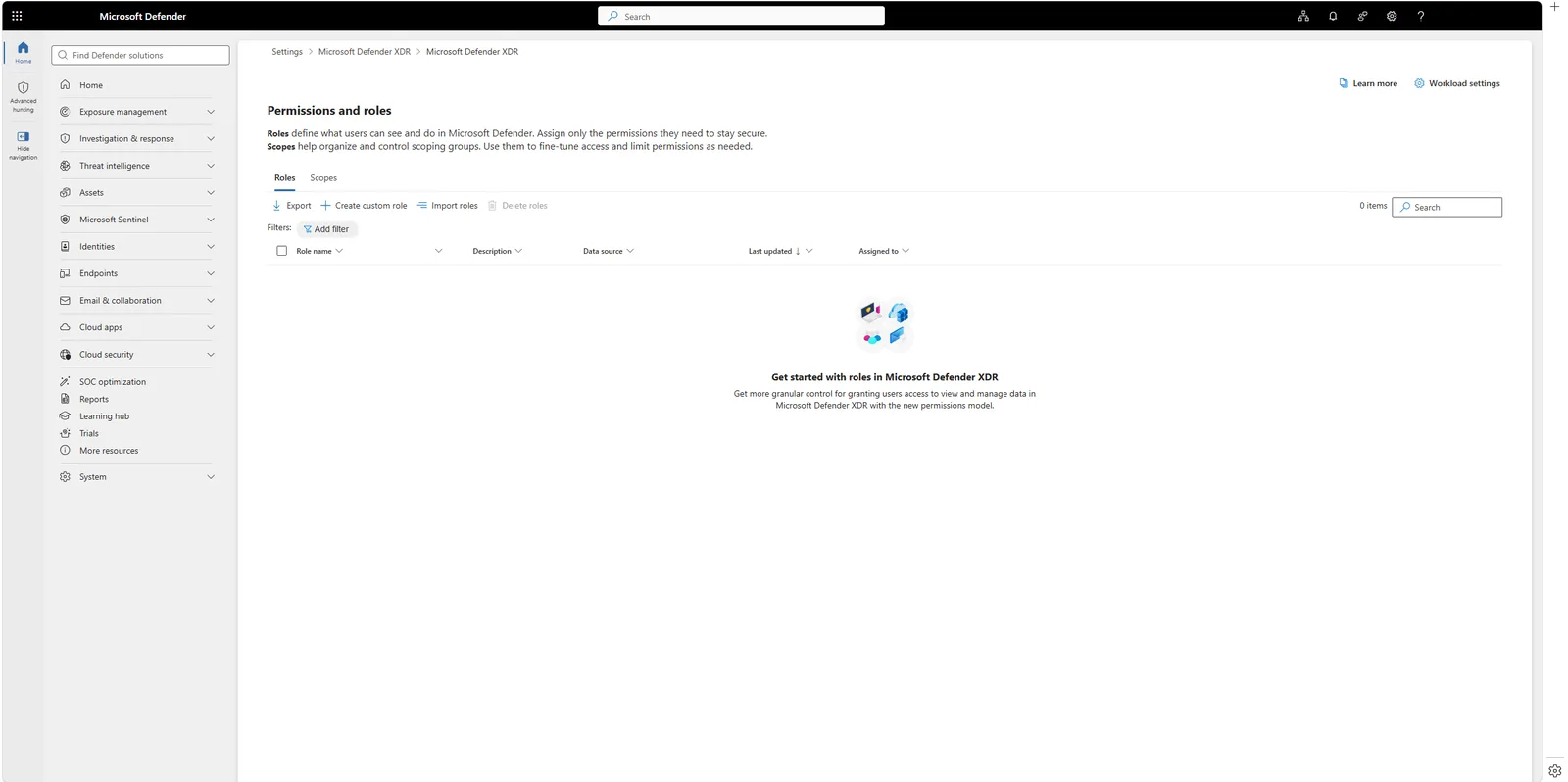
📷 Εικόνα 6: Η σελίδα Permissions and roles. Αν το Microsoft Defender XDR Unified RBAC δεν έχει ενεργοποιηθεί ακόμη στο tenant σου, αυτό θα δεις. Είναι αφετηρία, όχι σφάλμα.
Η Microsoft συγκεντρώνει τα δικαιώματα στο Microsoft Defender XDR Unified RBAC. Στο portal συνυπάρχουν τρία μοντέλα δικαιωμάτων, και αξίζει να τα καταλάβεις πριν δώσεις σε κάποιον το URL:
- Ρόλοι καταλόγου του Microsoft Entra ID: ευρείς ρόλοι, όπως Security Administrator και Security Reader.
- RBAC ανά workload: για συμβατότητα με το παρελθόν (device groups του Defender for Endpoint, ρόλοι του Defender for Office 365 που βασίζονται στο Exchange).
- Microsoft Defender XDR Unified RBAC: το σύγχρονο μοντέλο, με λεπτομερή δικαιώματα σε όλα τα workloads.
Κάτι που αξίζει να ξέρεις πριν το ψάξεις: σε υπάρχοντα tenants το Unified RBAC δεν είναι ενεργό από προεπιλογή. Ενεργοποιείται ρητά, ανά workload, και μέχρι τότε το tenant σου χρησιμοποιεί τους ρόλους καταλόγου του Entra ID και το RBAC ανά workload. Η ενεργοποίηση αλλάζει το ποιος βλέπει τι, οπότε αντιμετώπισέ τη ως προγραμματισμένη αλλαγή με δικές της δοκιμές και ενημέρωση, όχι ως κάτι που πατάς ένα ήσυχο απόγευμα. Σε νέα tenants του Defender for Endpoint και του Defender for Identity είναι προεπιλογή από το 2025, και σε νέους οργανισμούς Defender for Office 365 Plan 2 από τον Ιούλιο του 2026.
Για μια ομάδα που ξεκινά, η πρακτική ρύθμιση:
- Security Administrator για τους επικεφαλής του SOC που ρυθμίζουν πολιτικές.
- Security Operator για τους αναλυτές που διερευνούν και απαντούν.
- Security Reader για ελεγκτές, διευθυντές ή εξωτερική πρόσβαση μόνο για ανάγνωση.
Τακτοποίησέ το πριν καλέσεις οποιονδήποτε. Έχω δει τη συζήτηση για το «καθάρισμα» εκ των υστέρων και δεν είναι ποτέ ευχάριστη. Στην ΚΥΑ 1689/2025 αυτό είναι ο περιορισμός των προνομιούχων λογαριασμών της απαίτησης 13.δ, και στο ISO/IEC 27001 το control A.8.2 (Privileged access rights).
Η πρώτη σου ώρα στο Microsoft Defender portal
Αν ανοίγεις το portal πρώτη φορά σήμερα, ένα παραγωγικό πρόγραμμα 60 λεπτών:
- Λεπτά 0 έως 10: Πήγαινε στο System, Permissions. Έλεγξε ότι οι σωστοί άνθρωποι έχουν τους σωστούς ρόλους. Πρόσθεσε τον εαυτό σου ως Security Administrator αν χρειάζεται.
- Λεπτά 10 έως 20: Άνοιξε το Exposure management, Microsoft Secure Score. Δες τη συνολική βαθμολογία και διάβασε τα πέντε πρώτα recommendations. Μην αλλάξεις τίποτα ακόμη. Απλώς μάθε.
- Λεπτά 20 έως 35: Πέρασε από τις τέσσερις ενότητες των workloads: Endpoints, Email & collaboration, Identities, Cloud apps. Επιβεβαίωσε τι είναι εγκατεστημένο. Σημείωσε ό,τι δείχνει «not configured» ή είναι άδειο.
- Λεπτά 35 έως 45: Άνοιξε το Investigation & response, Incidents και διάβασε τρία πρόσφατα incidents από την αρχή μέχρι το τέλος. Σου μαθαίνει περισσότερα για το τι βλέπει η πλατφόρμα σου από οποιαδήποτε τεκμηρίωση.
- Λεπτά 45 έως 55: Τρέξε ένα από τα παραπάνω KQL queries στο Advanced hunting. Άλλαξε το χρονικό διάστημα. Ομαδοποίησε με άλλο πεδίο. Εξοικειώσου με τον editor.
- Λεπτά 55 έως 60: Βάλε σελιδοδείκτη στο
https://security.microsoft.com. Από εδώ και πέρα, αυτή είναι η αρχική σου σελίδα για την ασφάλεια.
Κλείνοντας τη σειρά
Εδώ τελειώνει η σειρά Microsoft Defender Demystified. Αν τη διάβασες από το Μέρος 1, τώρα μπορείς:
- Να ονομάσεις και να ξεχωρίσεις κάθε μέλος της οικογένειας του Microsoft Defender.
- Να εξηγήσεις τι κάνει καθένα από τα τέσσερα workloads του Microsoft Defender XDR.
- Να περιγράψεις πώς διαφέρει το Microsoft Defender for Cloud από το Microsoft Defender XDR, και πότε ταιριάζει το καθένα.
- Να κάνεις μια τεκμηριωμένη πρόταση αδειοδότησης για μικρή, μεσαία και μεγάλη επιχείρηση.
- Να ανοίξεις το Microsoft Defender portal και να βρεις οποιαδήποτε λειτουργία σε λιγότερο από μισό λεπτό.
Αυτή η βάση φτάνει για να κάνεις κάτι ουσιαστικό στο δικό σου tenant. Το επόμενο βήμα είναι το βάθος.
Πού να συνεχίσεις από εδώ
🔗 Συνέχισε με τη σειρά για το Microsoft Secure Score. Ξέρεις πλέον ότι το Microsoft Secure Score ζει μέσα στο Exposure management του Defender portal. Η σειρά Microsoft Secure Score ως εργαλείο GRC για ISO 27001 & NIS2 κάνει αυτή τη μία λειτουργία μηχανή ενός προγράμματος συμμόρφωσης για ISO 27001 και ΚΥΑ 1689/2025, με το ίδιο σχέδιο που κέρδισε Gold στα Cyber Security Awards 2026.
🔗 Θέλεις κάθε προϊόν σε βάθος; Η σειρά Microsoft Defender Up Close εξετάζει ένα προς ένα τα προϊόντα στην πράξη, ξεκινώντας από το Microsoft Defender for Endpoint, το Microsoft Defender for Office 365 και το Microsoft Defender for Identity.
🔗 Πού δένει το portal με τη συμμόρφωση; Οι οδηγοί για την ΚΥΑ 1689/2025, την Οδηγία NIS2, το ISO/IEC 27001 και τον GDPR σου λένε σε ποια ενότητα του portal βρίσκεται το τεκμήριο για κάθε απαίτηση.
Ακολούθησέ με στο LinkedIn για ειδοποιήσεις νέων άρθρων, ή γράψου στο RSS στην κορυφή της σελίδας.
Πηγές και επαλήθευση
Επιπλέον πηγές: